Content Sharing on Google Meet
Last updated January 22, 2026
This article offers advice and tips on choosing the best option to present and share content when using Google Meet on your Neat devices.
Contents
- Content sharing using HDMI/USBC input
- Content sharing using Companion Mode
- Content sharing directly from collaboration files
Content sharing using HDMI/USBC input
Neat Devices include an HDMI-in port that supports sharing screen content with audio via an HDMI cable. Additionally, some Neat Devices will also support content sharing via the USBC port. For the content sharing conditions on Neat Devices, see the summary below:
- HDMI only:
- Neat Bar Pro
- HDMI or USB-C*:
- Neat Bar Gen 2
*Important Note: The USBC cable used must support DisplayPort Alt Mode when operating in single cable setups, since this cable needs to carry both the video input and the USB link for audio. Not all USB-C cables include DisplayPort Alt Mode support. Users should confirm that their cable explicitly supports DisplayPort Alt Mode. USB-C cables certified for Thunderbolt 3 or higher are also compatible.
Warning: Be cautious when using USB-C extenders or adapters because their ability to pass DisplayPort Alt Mode and USB 2.0 High Speed varies. When they are part of the installation, the complete signal path should be tested and verified.
Neat devices also provide the capability to utilize 3rd party devices for wireless content sharing
via the HDMI input port. For example, you can connect a Barco Clickshare to the HDMI port
of the Neat Device to provide wireless content sharing via this 3rd party device. For more
information on 3rd party devices, contact your Neat Sales Rep or Product Specialist.
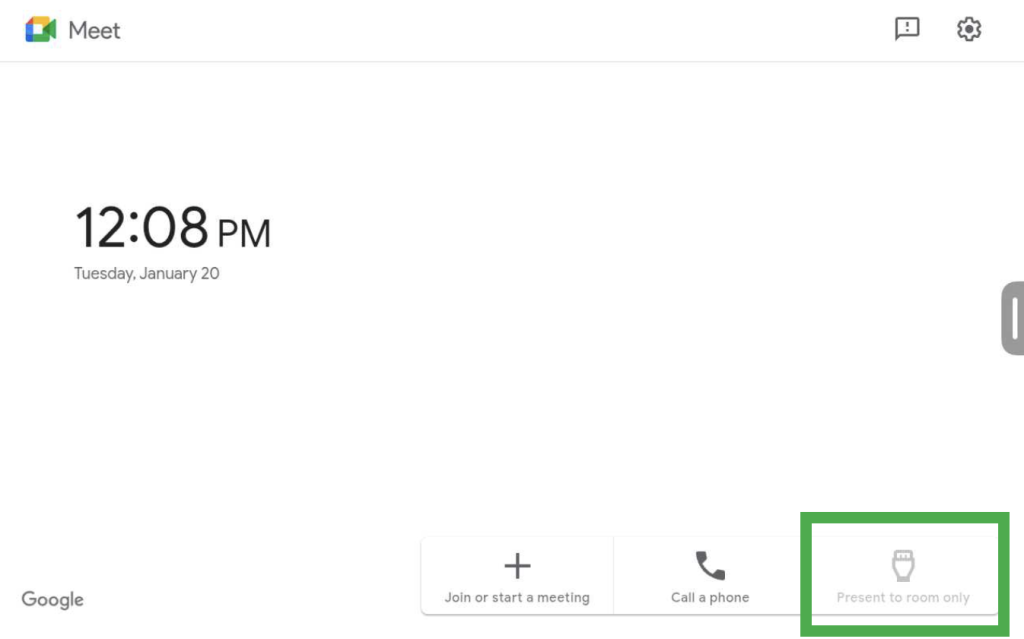
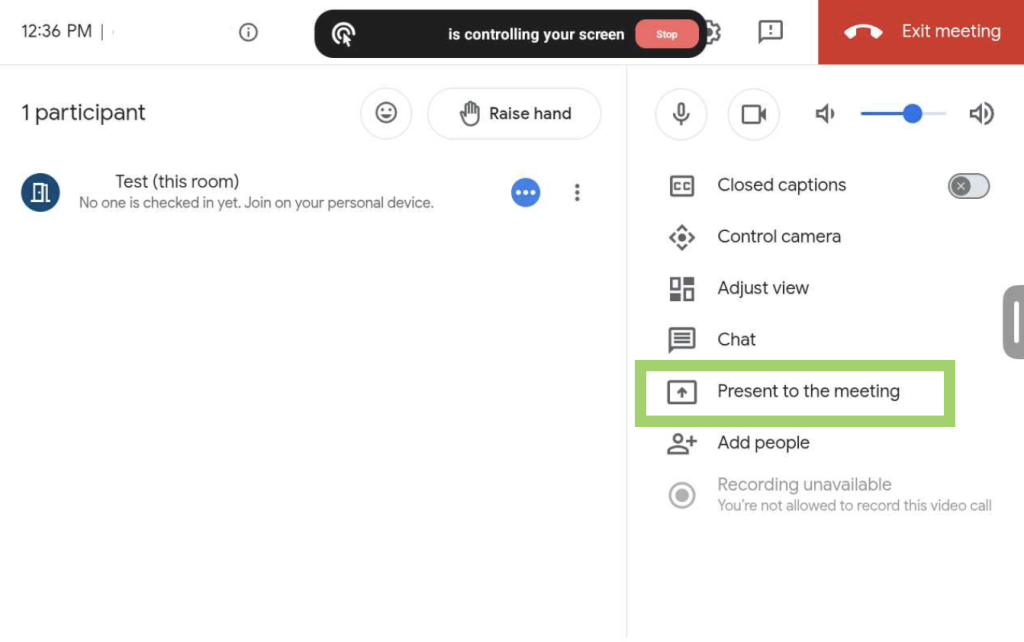
To share content via a wired connection:
- Outside a meeting – On the Neat Pad as a controller, select Present to room only.
- During a meeting – On the Neat Pad as a controller, select Present to the meeting.
Content sharing using Companion Mode
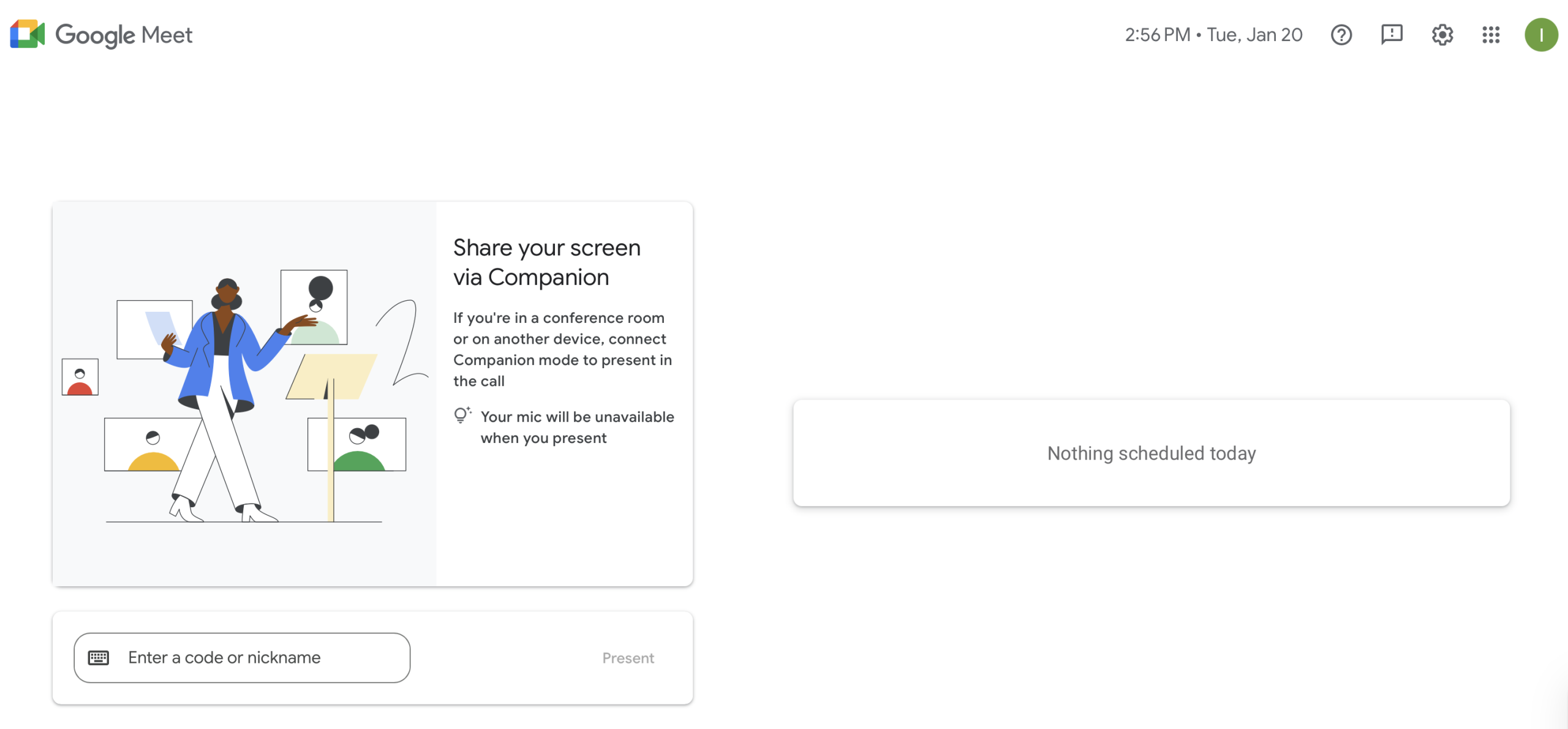
You can use Companion Mode on your laptop to quickly share your screen in companion
mode.
From the meeting invite:
- In a meeting invite, click Join.
- On the meeting landing page, click Present and then choose what to share.
Using a short link:
- In your browser, enter g.co/present.
- On the Google Meet home screen, select a meeting and then choose what to share.
For details about companion mode, see Google’s companion mode guide.
Content sharing directly from collaboration files
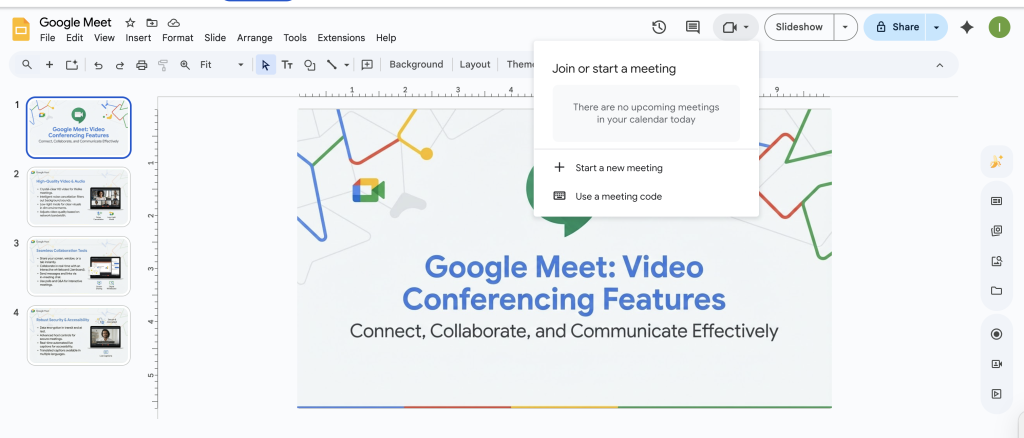
This method is for sharing content directly from collaboration files such as Google Docs, Sheets, Slides.
Important Note: This feature is only available on a Chrome or Edge browser.
- On your computer, open a file in one of the following programs:
- Google Docs, Google Sheets, Google Slides
- At the top right, click Meet.
- Choose an option:
- To join a scheduled meeting, click the meeting name you want to join.
- To join a meeting with a meeting code, click Use a meeting code, and then enter a code.
- To bring the meeting into your document, spreadsheet, or presentation, click Join the
call. On the right-hand side, a side panel shows your meeting.- If you have clicked Join the call, you can not present your file or change how other participants view the meeting.
- To present your document, spreadsheet, or presentation, at the bottom right, click Share screen, then select the tab you are in, then click Share.
- Important: When you present a tab from your document, spreadsheet, or presentation, you can not change which tab you present. To switch between tabs while you present, you can present from Google Meet instead.
- To stop your presentation, at the bottom right, click Stop presenting to cancel the
presentation.
For additional details, see Google’s guide to sharing from Workspace files