
Room Messages in Neat Pulse
Room Messages let you send a message from Neat Pulse that appears directly on the screens of your Neat devices. You can send a message to a single room or to many rooms at once, making it useful for time-sensitive notifications – for example, alerting people in meeting rooms about planned maintenance, building announcements, or emergency situations. Messages can be sent from the Neat Pulse portal, through the Neat Pulse API, as well as the Neat Pulse MCP.
Note: This feature is only available to customers on a paid Pulse plan, and to all user roles.
How It Works
When you send a message, it appears as an overlay on all screens of the selected devices – including screens that are currently in a call. The message stays on screen for the duration you choose (30 seconds to 5 minutes), with a visible countdown showing when it will disappear.
People in the room can dismiss the message early by tapping Dismiss on a touch-enabled device (a paired/standalone Neat Pad or Neat Board). Neat Bars in Open mode with no paired Neat Pad cannot dismiss the message early.
Important: Once sent, a message cannot be edited or recalled. Double-check your message and the selected rooms before sending.
How to Send a Message
You can send a message from three places in Neat Pulse: to multiple spaces or devices at once from the Devices page, to a single space from the Space view, or to a single device/device group from the Device view. All three open the same Send message dialog.
Sending to multiple spaces or devices at once
- Log in to your Neat Pulse organization at pulse.neat.no.
- On the Devices page, select the spaces or individual devices you want to send a message to. You can select a single space, multiple spaces, or use Select all.
- Click the ⋯ (more options) button in the action bar at the top of the page.
- Click Send message.
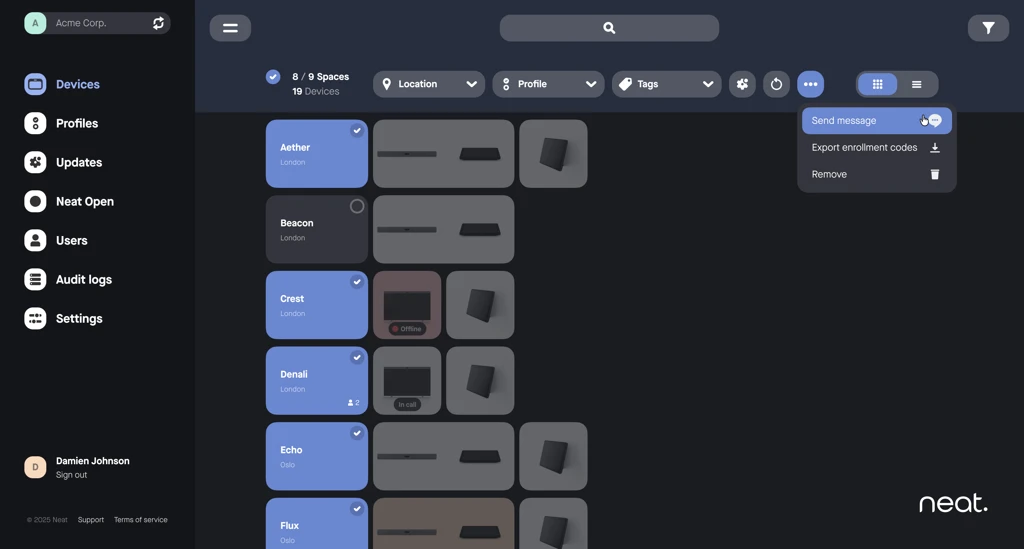
Figure 1. Selecting spaces and opening the Send message option from the Devices page
Sending to a single space
- On the Devices page, find and open the space you want to send a message to.
- In the space view, click the ⋯ (more options) button.
- Click Send message.
The message is sent to all devices in that space.
Sending to a single device
- On the Devices page, find and open the device you want to send a message to.
- In the device view, click the ⋯ (more options) button.
- Click Send message.
Composing and sending the message
Whichever way you open it, the Send message dialog works the same:
- Type your message. Messages can be up to 280 characters long. Line breaks are allowed, but blank lines are not.
- Select how long the message should stay on screen using the Duration dropdown. The options are 30 seconds, 1 minute, 3 minutes, and 5 minutes. The default is 1 minute.
- Review the list of spaces the message will be sent to.
- If you do not want your name shown on the message, uncheck Show sender name.
- Click Send.
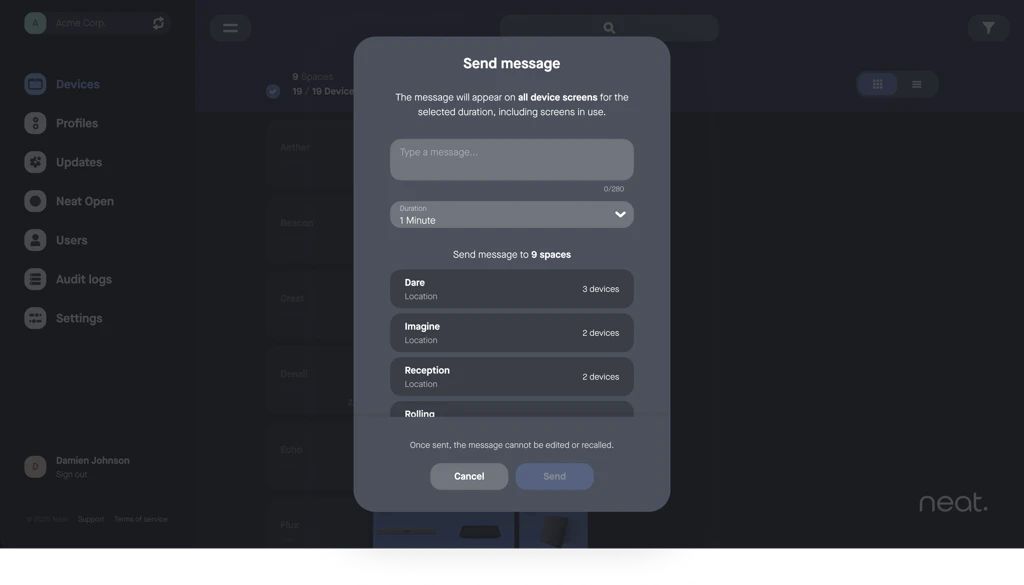
Figure 2. The Send message dialog with message text, duration, and target spaces
After sending, a confirmation dialog shows the result: how many spaces and locations the message was shown in, how many of the selected spaces were empty, and approximately how many people saw the message.
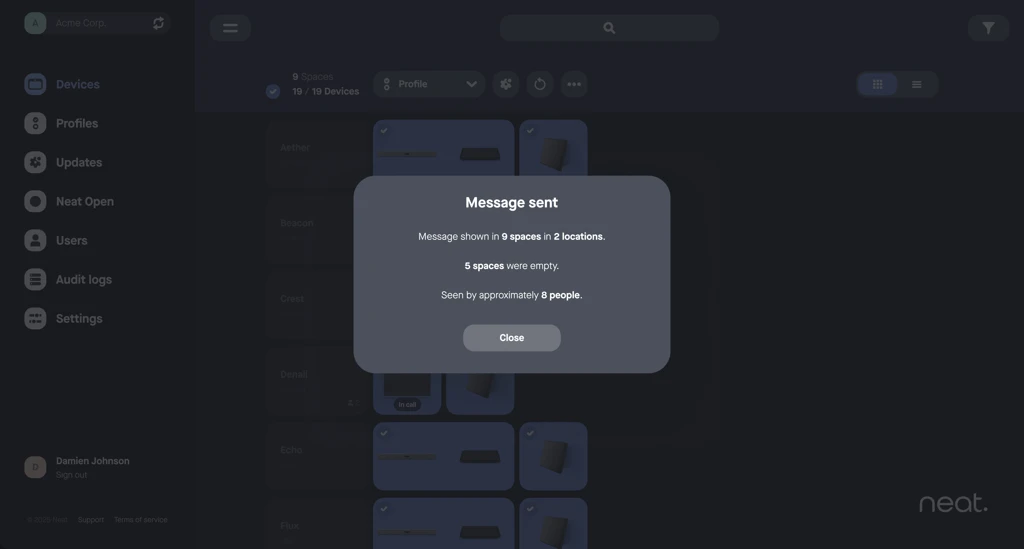
Figure 3. The message sent confirmation with delivery results
What the Message Looks Like on Devices
The message appears as a card in the center of the screen and shows:
- The message text
- A countdown showing when the message disappears (for example, “Disappears in 00:52”)
- The sender’s name, if Show sender name was enabled
- A Dismiss button on touch-enabled screens (Neat Pad and Neat Board)
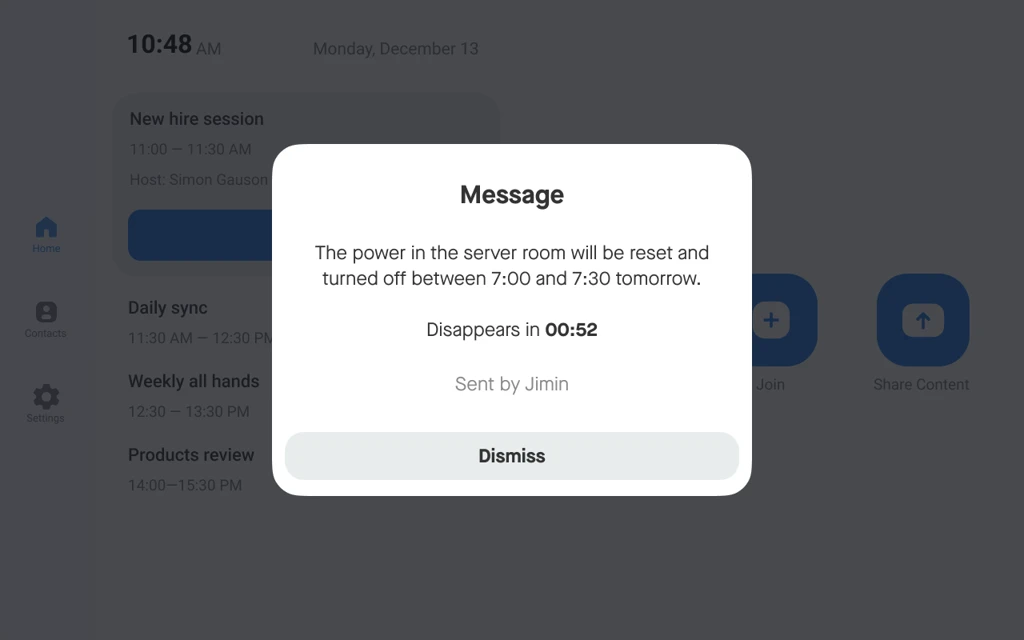
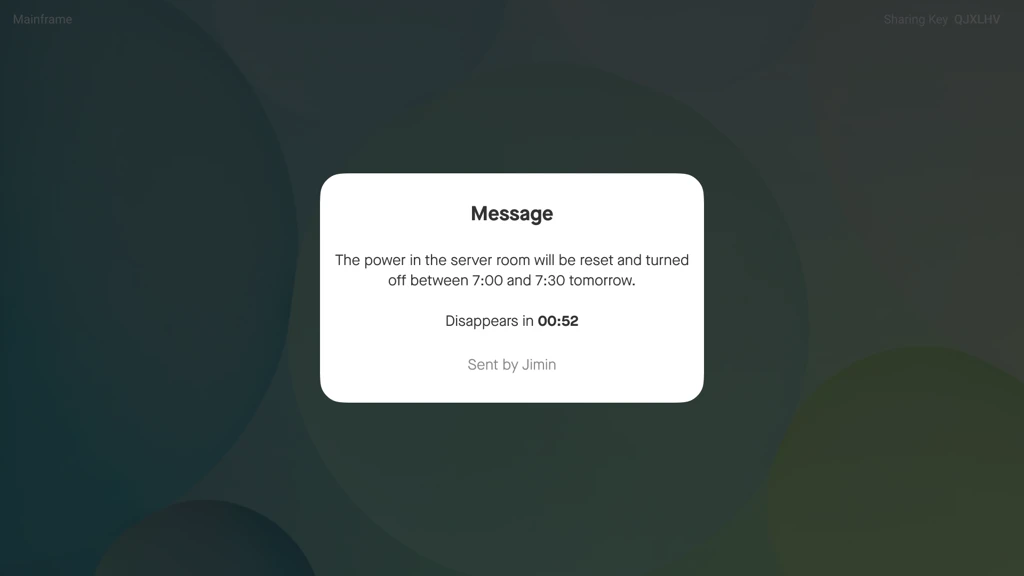
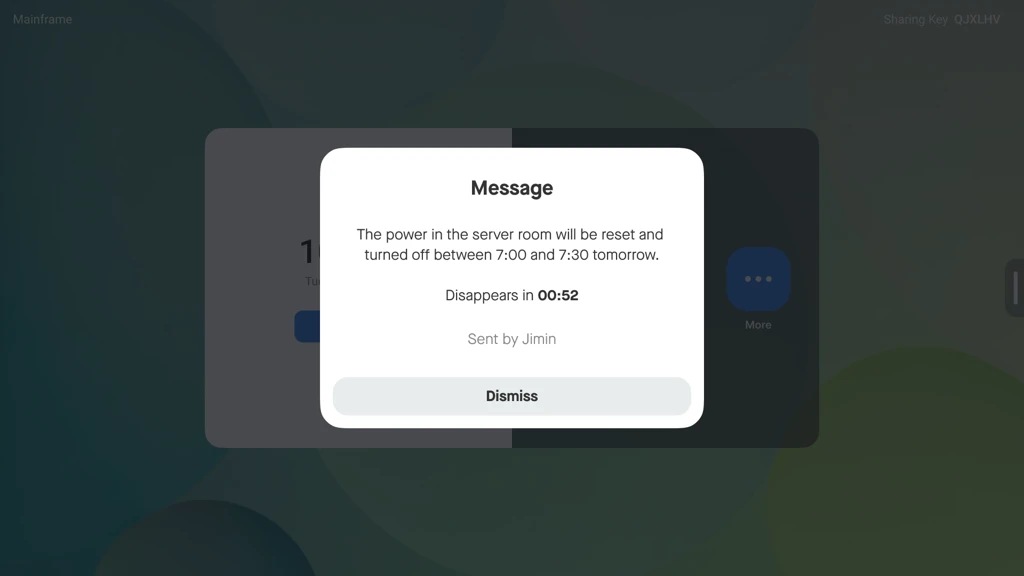
Figure 4. A message displayed on a Neat Pad, Neat Bar screen, and Neat Board
Sending Messages Through the API
You can also send messages programmatically through the Neat Pulse API – for example, to integrate Pulse with a mass notification system so that emergency alerts automatically reach your meeting rooms. When sending through the API, the message duration can be set to any number of seconds, and the API response includes the same delivery results shown in the confirmation dialog.
For details, see the API documentation: Neat Pulse API Reference.
Related Articles
Frequently Asked Questions
Can I recall or edit a message after sending it?
No. Once a message is sent, it cannot be edited or recalled. It stays on the selected screens until the duration ends or someone in the room dismisses it.
Will the message interrupt rooms that are in a call?
The message appears as an overlay on all screens of the selected devices, including screens that are in an active call. The call itself continues uninterrupted behind the message, audio and video isn’t impacted, and participants can dismiss the message from a touch-enabled device. Because messages are visible mid-meeting, they are best reserved for information that genuinely can’t wait.
How accurate is the “seen by approximately N people” count?
The count is an estimate based on the occupancy detected by the sensors in your Neat devices at the time the message was shown. It is intended to give you a rough sense of reach – for example, to confirm an announcement actually reached people – not an exact headcount.
Can I schedule a message to be sent later?
No, messages are sent immediately. Scheduling is not currently supported. If you need a message shown at a specific time – for example, ahead of planned maintenance – you can send it manually at that time or trigger it through the API from your own scheduling system.
Can I send a message longer than 280 characters?
No. Messages are limited to 280 characters to make sure they render clearly on all device screens. If you exceed the limit, the Send button is disabled until you shorten the message.