
Getting Started with Neat App Hub
Last updated on December 18, 2025
Introduction
Neat App Hub is an open ecosystem app platform that makes third-party business applications accessible on Neat devices. Neat devices can run Zoom, Microsoft Teams, or the app(s) that a business chooses on any Neat device. Accessible from Neat Pulse, IT administrators have the ability to enable, deploy and manage selected applications across their Neat deployment to take advantage of the tools they already use across their teams.
This article gives instructions on how to enable room and desk booking applications on Neat Pad for Scheduling and collaboration and/or workplace management applications on Neat Boards, Neat Frames and Neat Bars. For more information, see the Neat App Hub product page.
Note: If your account does not show an app you are looking for, please get in touch with your Neat sales representative/product specialist or submit your request via this form.
Contents
- Introduction
- 1. Prerequisites for deploying Neat App Hub
- 2. Instructions to enable apps for your Neat Pulse account
- 3. Understanding the difference between browser and custom web apps
- 4. How to get help for Neat App Hub
1. Prerequisites for deploying Neat App Hub
- A Neat Pulse account with Neat App Hub enabled. Note that:
- Owners control which apps are allowed to be installed on your Neat App Hub devices.
- Admins can view these apps and choose which apps to install on each device.
(For more info on Pulse user types, see Manage Users and Roles in Neat Pulse.)
- Neat devices dedicated for use on this, which must be connected to the network and able to connect to the Neat Pulse Management Platform.
Important note: Devices used to run apps as part of Neat App Hub are unable to run your preferred video conferencing platform, e.g. Zoom or Microsoft Teams. In order to go back to these applications, you will need to factory reset your devices and choose your preferred video conferencing platform during installation.
2. Instructions to enable apps for your Neat Pulse account
- Log into your Neat Pulse account that has App Hub enabled.
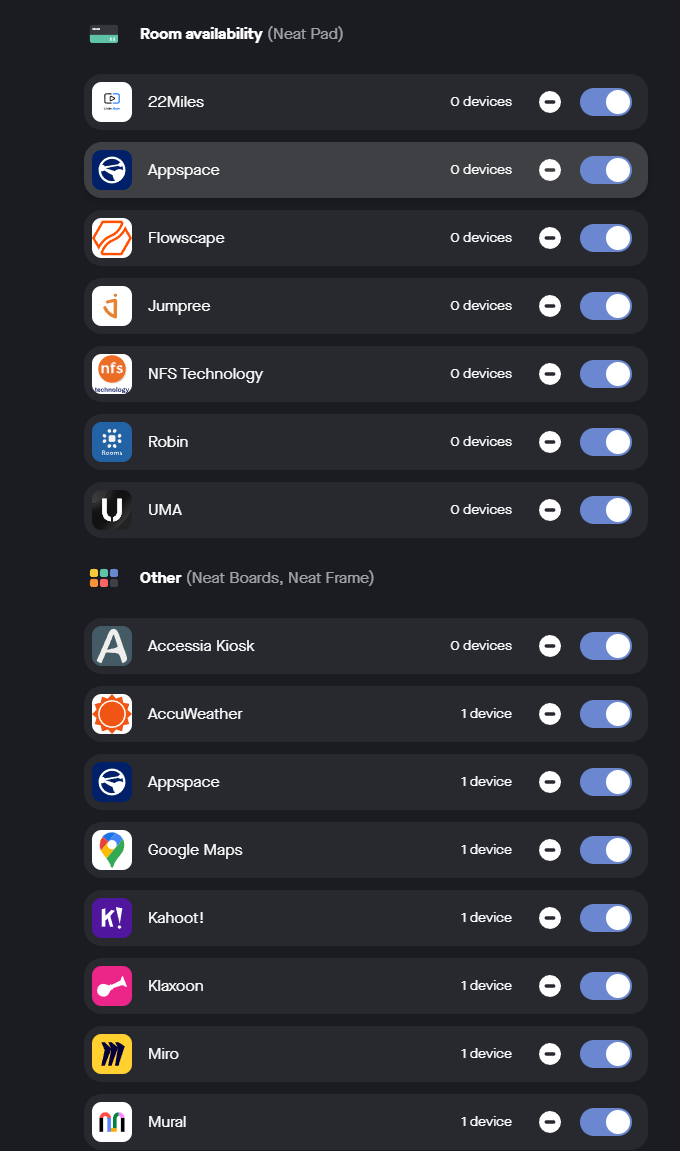
- Click on the Apps menu from the left-hand options and enable the applications you would like to have accessible for your account.
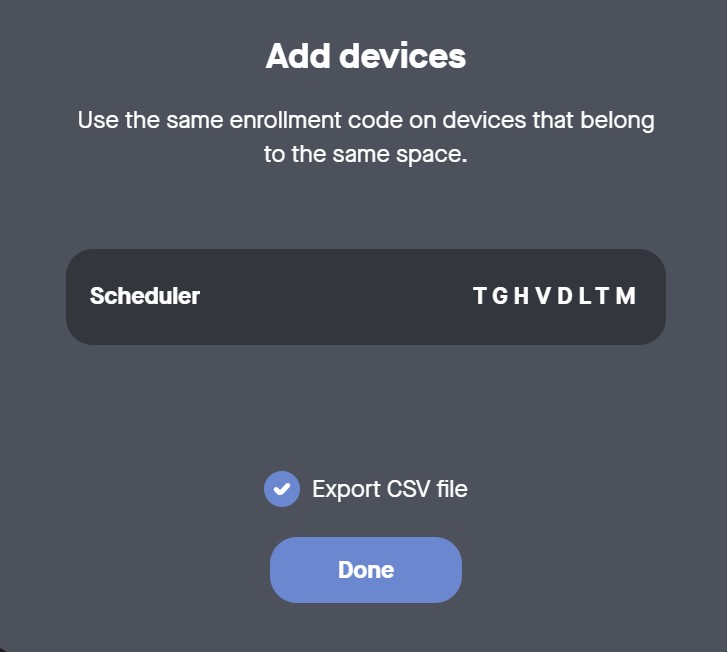
- Go to Devices and click Add device.
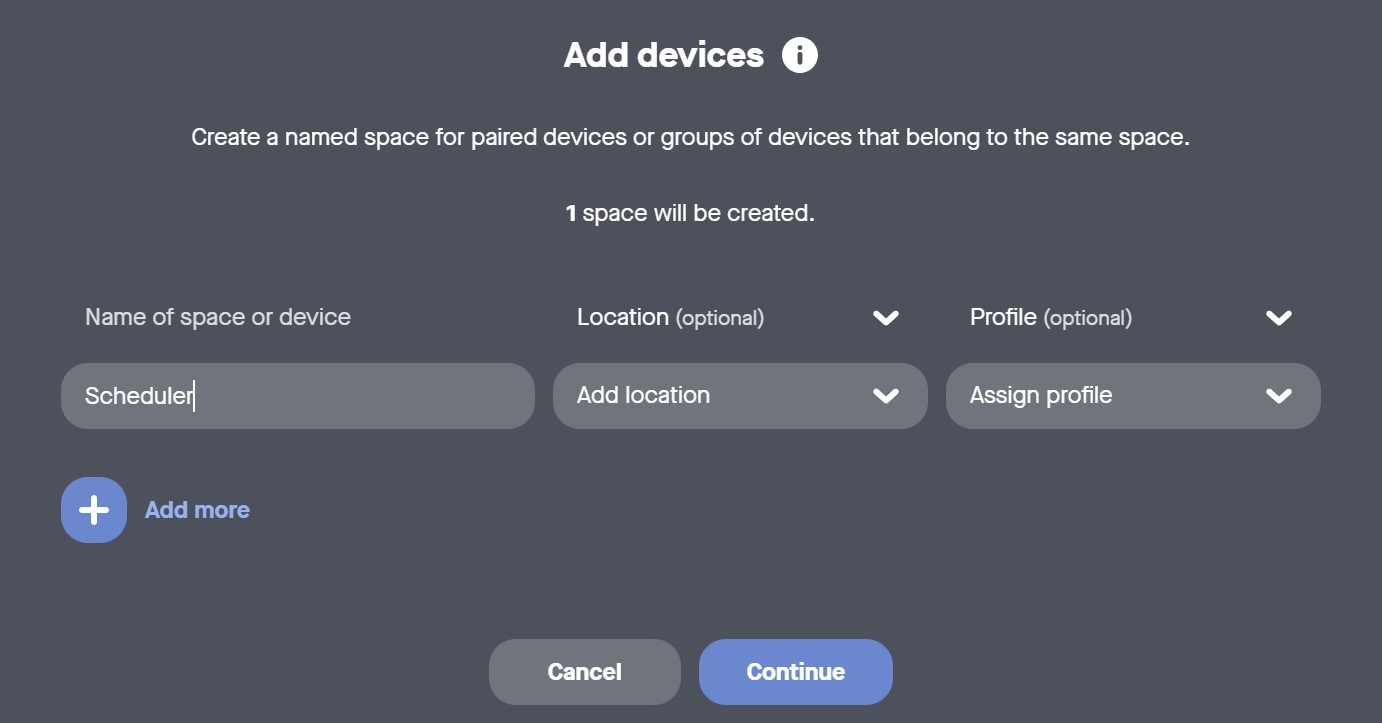
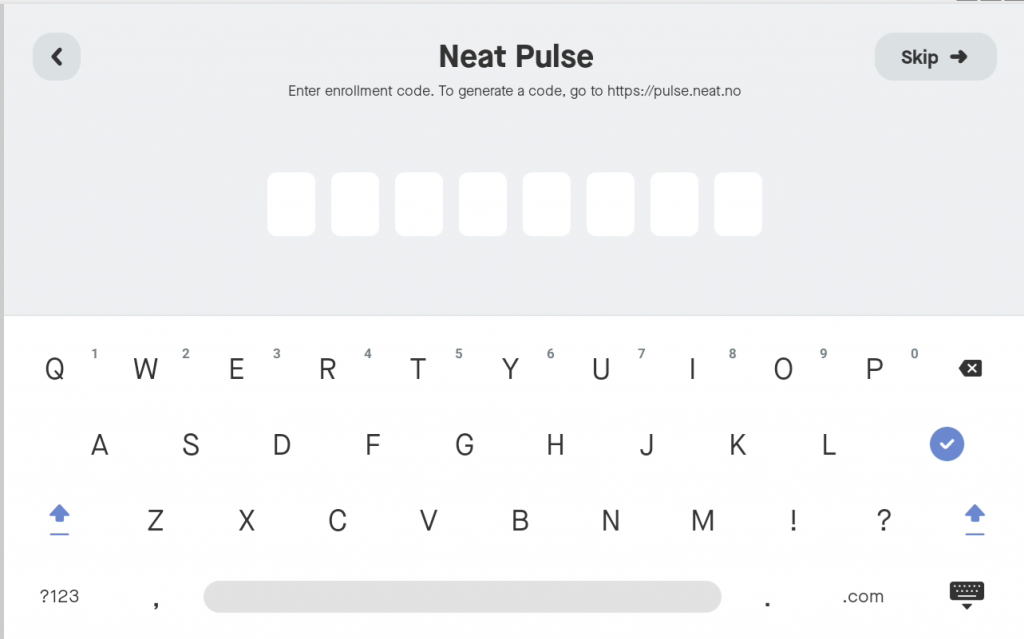
- Make a note of the enrolment code.
- Factory reset your Neat device if it is already in use.
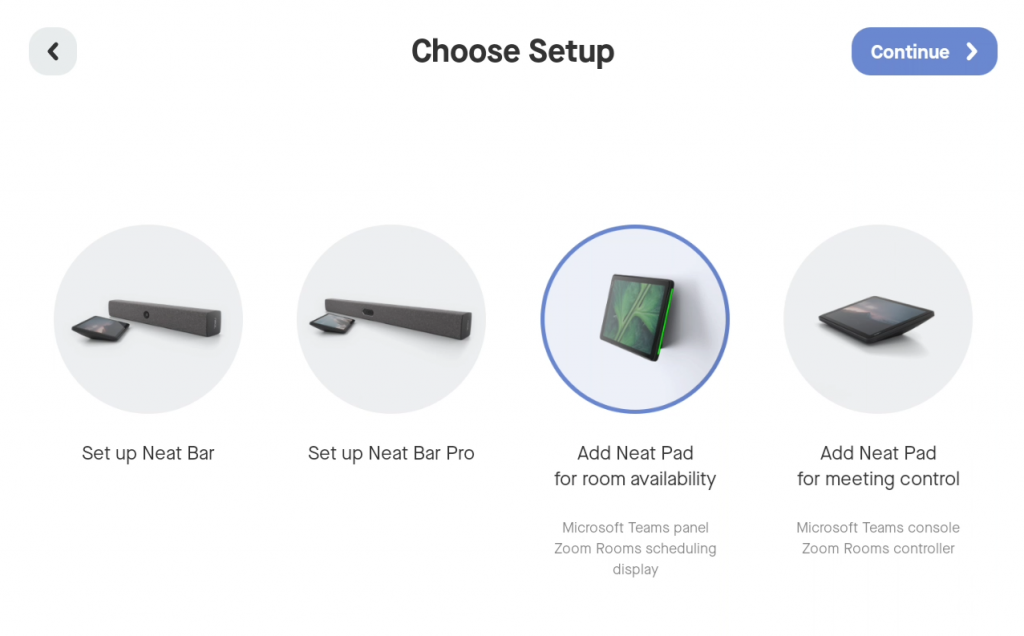
- Follow the install wizard as appropriate for the type of device you are setting up. For example, for Neat Pad, once you get to the Choose Setup screen, select Add Neat Pad for room availability then continue with the wizard. For Neat Frame and Neat Board, you don’t need to use this step.
- When you get to the Neat Pulse screen, enter the enrolment code from step 4.
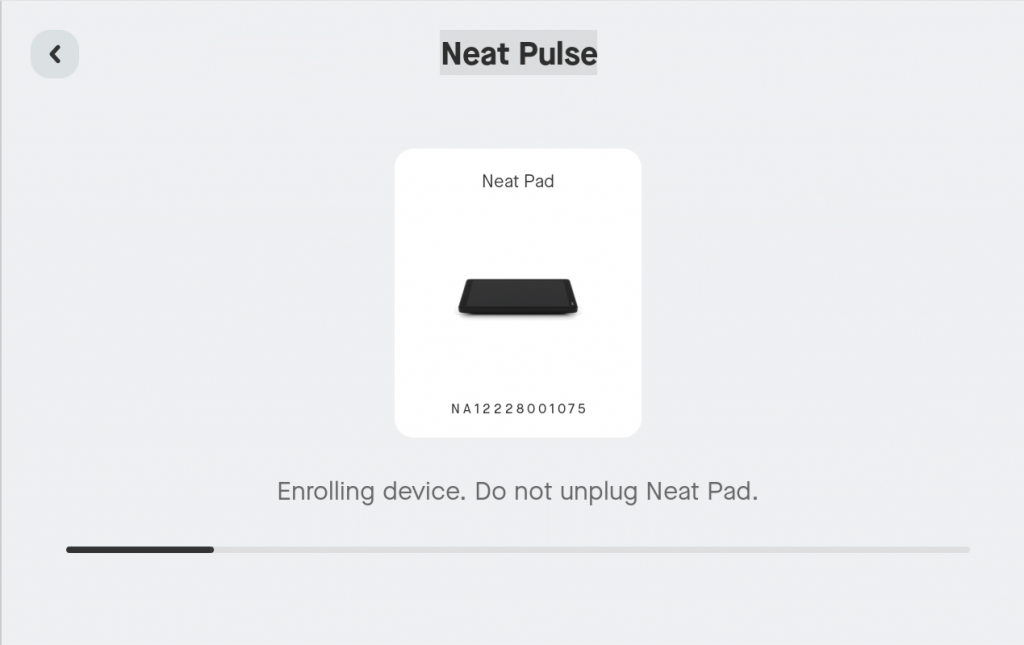
- Wait for the device to enroll into Neat Pulse, this may take a couple of minutes.
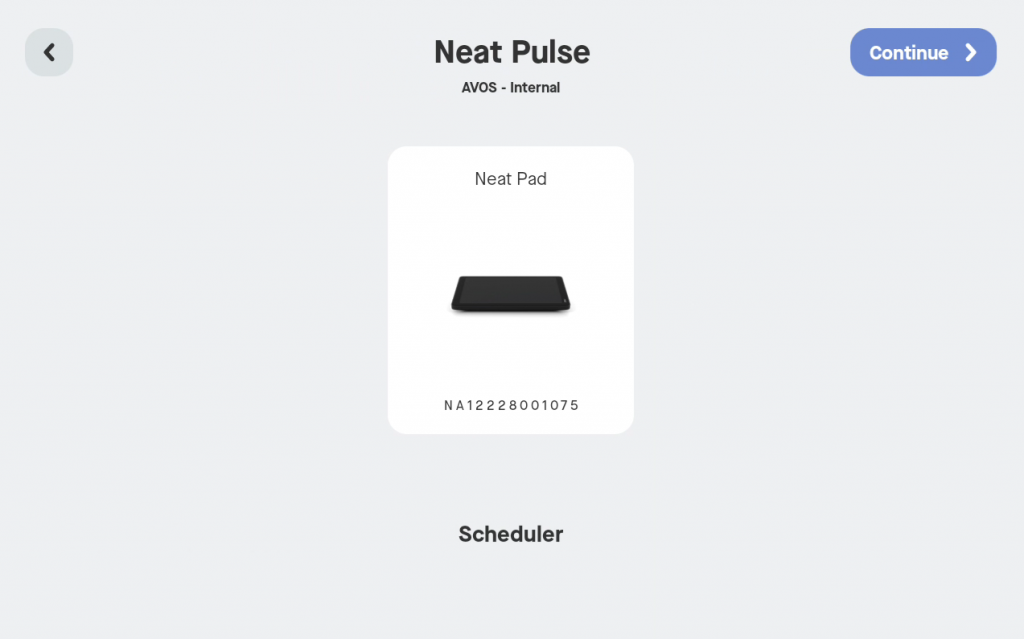
Continue/skip through the setup options for Camera Preview, Framing boundary, and so on until you get to Choose platform.
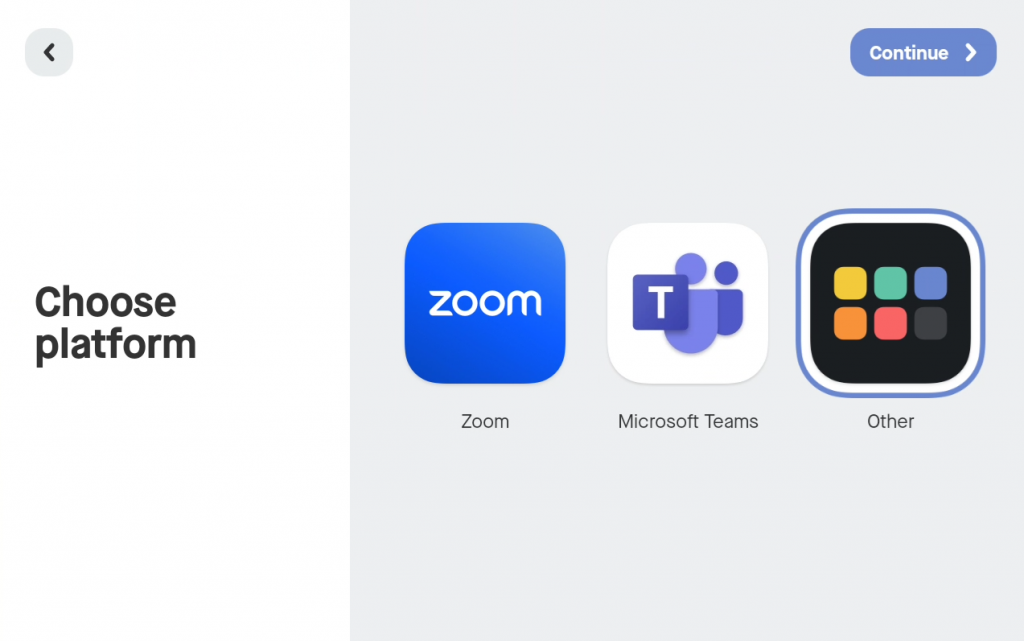
- When selecting a platform, choose Other.
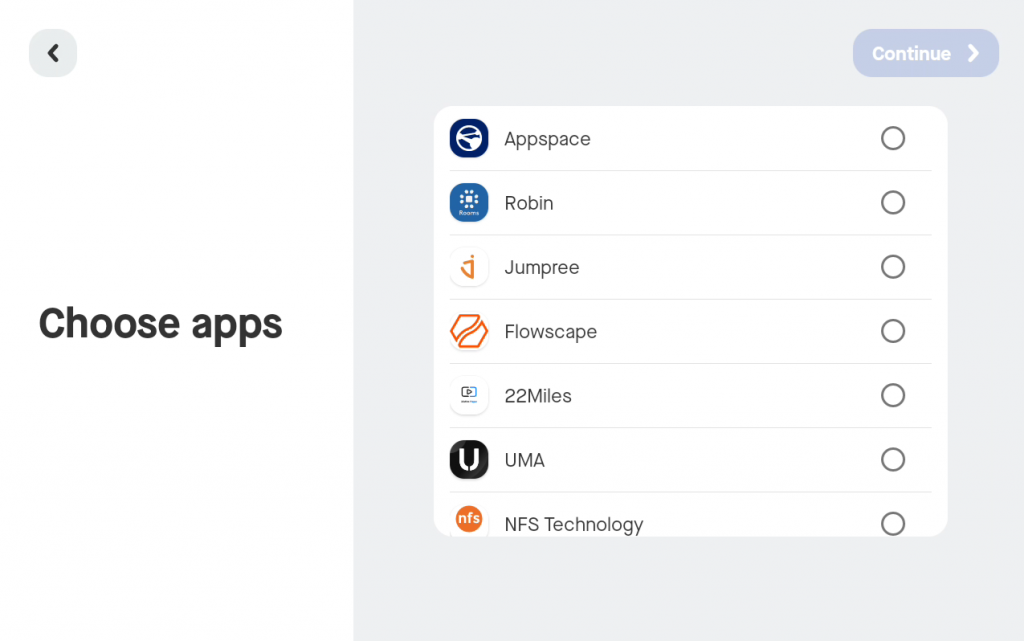
- Step 10(a): For a scheduling application (for Neat Pads), choose the room/desk booking provider you want:
- Step 10(b): For collaboration or workplace experience apps (for Neat Boards, Frames and Bars), choose the app or apps you want to use:
- Next, tap to launch the Neat apps.
- The chosen app or apps will now install and you can now configure these according to the app provider’s requirements.
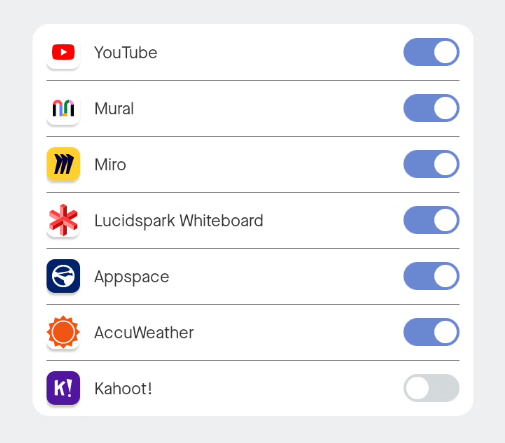
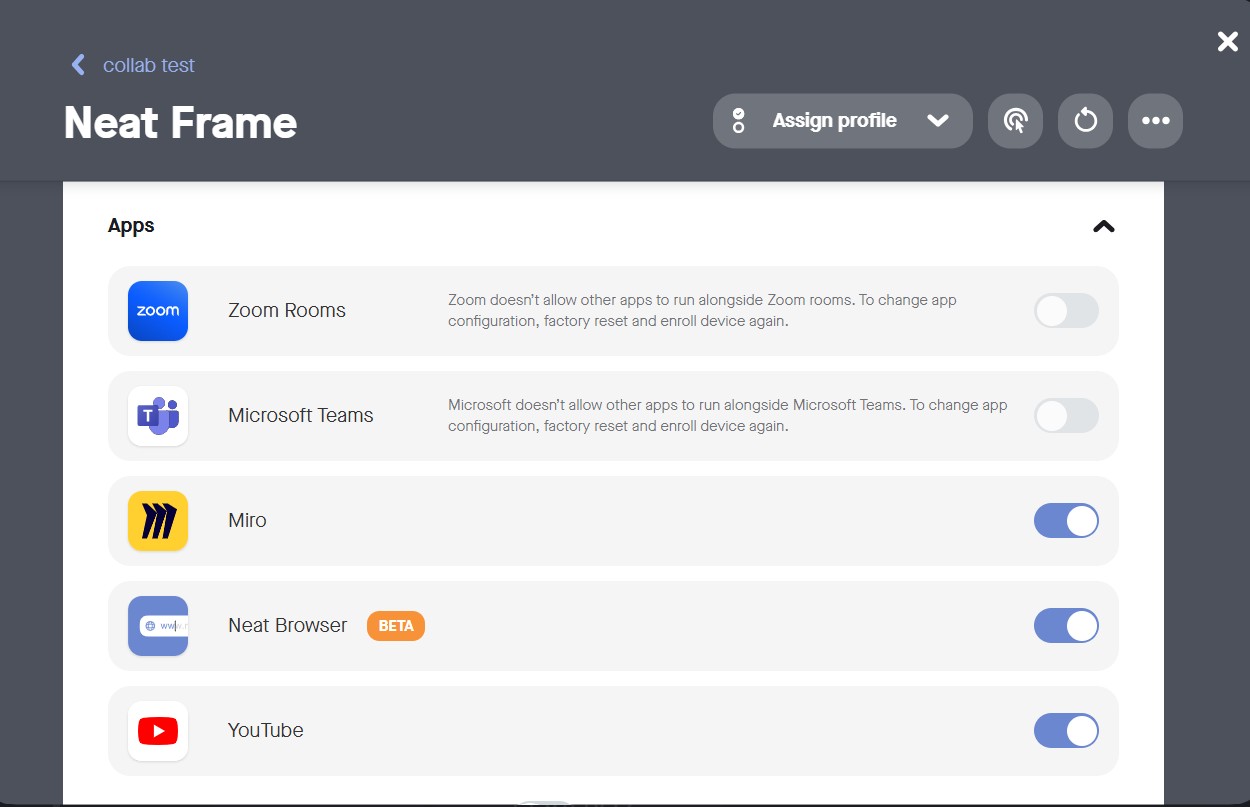
- Further apps can be installed or uninstalled on the specific device’s page on Neat Pulse:
3. Understanding the difference between browser and custom web apps
Neat devices in “App Hub mode” have access to a browser. Additionally, customers with a paid Neat Pulse plan can create “Custom Web Apps” that can be enabled on Neat devices. While these solutions share similar core functionality, each is designed for a distinct purpose. Below is a structured comparison highlighting the differences:
| Feature | Browser | Custom web app |
|---|---|---|
| Interface | Standard browser with address bar, back/forward buttons, and tabs. *Paid plans can configure shortcuts. | Fullscreen, locked kiosk mode with no visible browser navigation controls. |
| Control | Users can freely browse or navigate to other websites. | The webapp must provide all navigation, ensuring the user stays within a defined scope. |
| Use cases | Best for flexible browsing; when you want or expect users to explore multiple sites or resources. | Perfect for single-purpose applications where you want to ensure a focused, uninterrupted user experience. |
4. How to get help for Neat App Hub
To get help with Neat App Hub, please see the article: Getting Help with Neat App Hub.