
How to Pair and Sign in on Google Meet
Last updated January 22, 2026
After you have gone through the OOB (out-of-box) set up and chosen Google Meet as your preferred platform on your Neat devices (as described in How to Install Google Meet on Neat Devices), you must pair and sign in your Neat devices at the Google level. This article guides you through how to do that.
Contents
Prerequisites
- You must be able to sign in to a Google Meet Account with the correct license. For more information on Google licensing needed for each device, see our Google Meet Licensing article.
- Ensure that Neat-level pairing has been successfully completed, and the Google Meet app is launched.
1. Pairing
After you have successfully paired Neat Bar 2/Neat Bar Pro with a Neat Pad at the Neat level, Neat Bar 2/Neat Bar Pro and Neat Pad will launch their respective Google Meet software. To operate as a single Google Meet device, the two devices will automatically pair at the Google level; this process should happen seamlessly without any user intervention.
2. Signing in
- The Neat device will display a sign-in screen with a code.
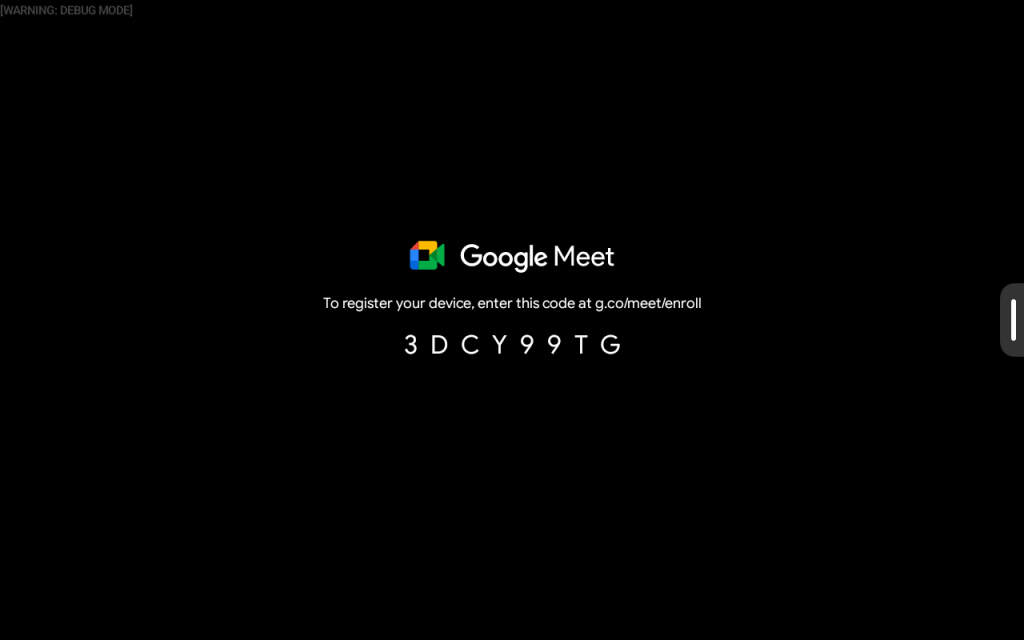
- Open a browser on your laptop and go to g.co/meet/enroll.
- You will be asked to sign in to the Google Admin account, and depending on the Google device enrollment setting, it may require a user with administrator privileges.*
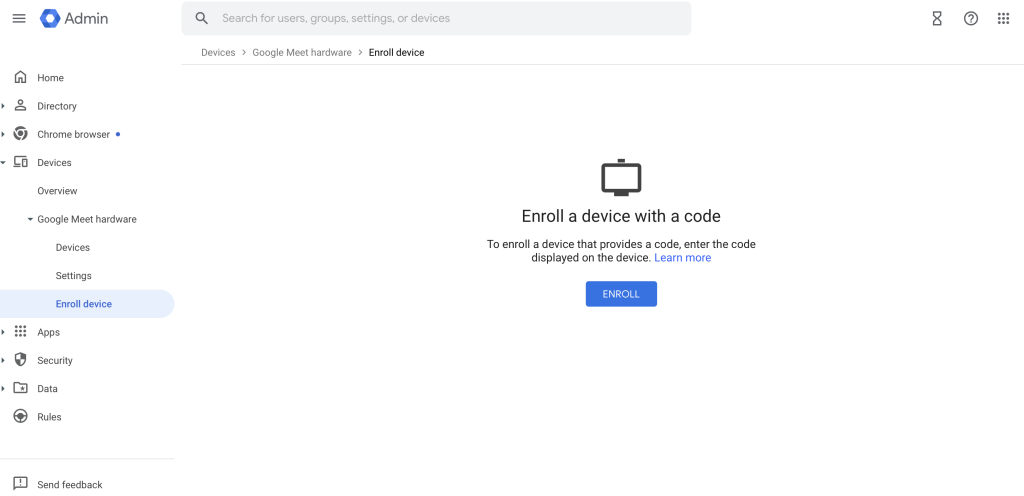
- On this screen (see Figure 2), click Enroll.
- A pop-up will appear that allows you to provide a device name and enter the code shown on the display of the Neat device (also referred to as the activation code), see Figure 3, and click Enroll once done.
Note: When setting up a Neat Bar and Neat Pad, the sign-in code will be the same on both devices as they are paired.
- The enrollment process should take approximately 5 minutes.
A pop-up will appear in the top-right corner of the browser to show the status of the enrollment process of the Neat devices. - Once the enrollment process is complete, you are now ready to make calls using Google Meet on your Neat devices.
*Note: To remove administrative privileges for device enrollment and allow any organization users to enroll devices, go to your Google Admin account> Google Meet hardware (left-hand side)> Settings > Service Settings> Device enrollment and un-check Require enrollment privilege. See Figure 4.
