Neat Device Attributes for Microsoft Intune Conditional Access Device Exclusions
Last Updated: December 15, 2025
As more organizations move to the cloud and support a wide range of devices, keeping access secure—without getting in people’s way—can be a challenge. Microsoft Intune Conditional Access helps protect company data, but sometimes certain devices need a little flexibility. That’s where device attribute–based exclusions come in.
MTRoA devices have specific Conditional Access supportability requirements, for more info, see this Microsoft article, Supported Conditional Access and Intune device compliance policies for Microsoft Teams Rooms and Teams Android Devices.
By using Neat device attributes such as display name, manufacturer, or model, admins can fine-tune Conditional Access policies to safely allow exceptions when needed. These exclusions help keep things secure whilst ensuring ensuring successful sign-in and ongoing operations.
Note that “Filter for devices” is an optional control when creating a Conditional Access policy. For more detail on Microsoft Intune Conditional Access policies, see the Microsoft article: Conditional Access: Filter for devices.
Contents
- 1. Neat device attribute assignment
- 2. Confirm attributes currently assigned for devices
- 3. Full Device Naming Convention for Intune
- 4. Troubleshooting Conditional Access-related issues on Teams Android devices
1. Neat device attribute assignment
Neat device attribute assignments provide additional information. The recommended attribute to exclude all Neat devices is “manufacturer”, and the “model” attribute can be used to exclude specific Neat device types, for example:
- “displayName”: “MTRoA_AndroidAOSP_12/8/2025_7:48 PM”
- “manufacturer”: “Neatframe”
- “model”: “NF19B1”
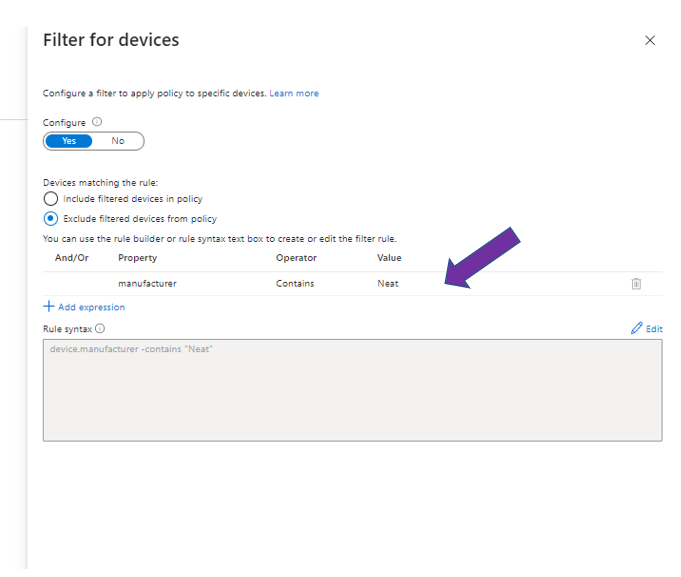
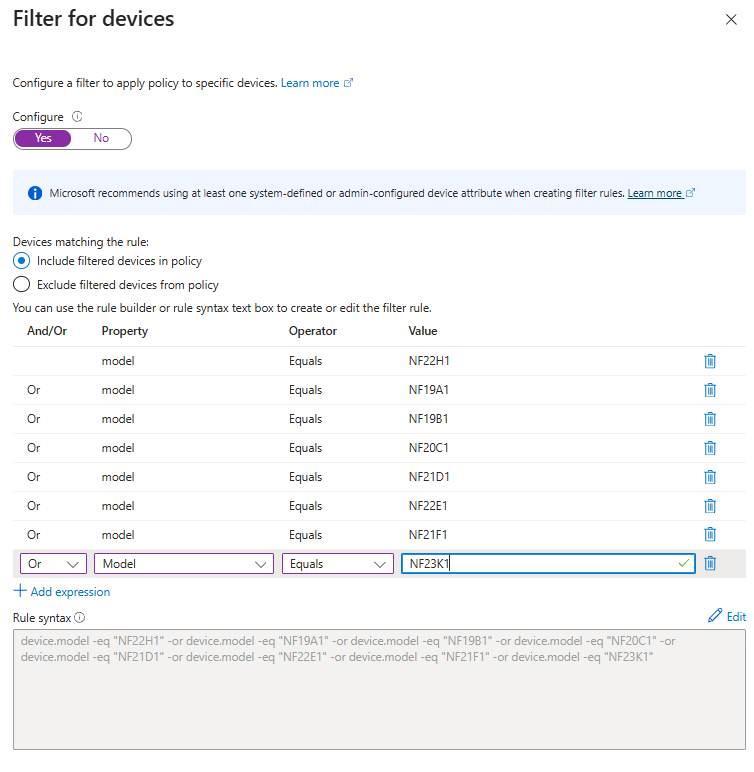
You can simply use manufacturer contains Neat to cover all Neat devices (Figure 1), or if you want to be explicit, you can specify the Neat device names using the model property (Figure 2).
Note: Microsoft best practice for MTRoA is to “exclude” from policies applied to personal devices and “include” in policies meant for shared devices. For more information, see the Microsoft article Using filters for devices.
2. Confirm attributes currently assigned for devices
Graph API’s can be used to confirm the values that are assigned for your device in Microsoft. The following guide contains helpful instructions on how to use Graph APIs to pull device attribute details: Use device filters for conditional access policies to exclude/include specific devices – SMBtotheCloud. More information on what permissions are required to run the Graph API commands can be found in the following Microsoft documentation: Get device – Microsoft Graph v1.0 | Microsoft Learn.
3. Full Device Naming Convention for Intune
Table 1 below shows Neat devices and their naming convention as recognized by Microsoft Intune.
| Neat Product | Manufacturer Name (manufacturer) | Model (model) |
|---|---|---|
| Neat Pad | neatframe | nf19a1 |
| Neat Bar | neatframe | nf19b1 |
| Neat Bar 2 | neatframe | nf22e1 |
| Neat Bar Pro | neatframe | nf21d1 |
| Neat Board | neatframe | nf20c1 |
| Neat Board Pro | neatframe | nf23k1 |
| Neat Board 50 | neatframe | nf22h1 |
| Neat Frame | neatframe | nf21f1 |
Note: Neat Center does not appear in Intune as there is no Microsoft Teams application on the device, hence no need to register/enrol into Intune.
4. Troubleshooting Conditional Access-related issues on Teams Android devices
For more information on this topic, see the Microsoft Teams article: Conditional Access-related issues on Teams Android devices.