
Manage Users and Roles in Neat Pulse
Last updated March 10, 2026
User management in Neat Pulse is designed to be flexible, allowing customers to add users from outside of their organization, such as their partners, to help manage their endpoints and organization settings.
Contents
User Types
There are two user types in Neat Pulse:
- Owner: Owners have access to all settings in the organization. There can be multiple owners by organization.
- Admin: Access for admins is restricted to specific regions. Admins can only administer endpoints within these regions and cannot edit profiles. They cannot add users or edit organization settings.
The table below provides a quick comparison between the Owner and Admin roles to highlight their differences.
| Feature | Owner | Admin (Region-Specific) |
|---|---|---|
| General Organization Access | ||
| Access to all organization-wide settings | ✔ | ✘ |
| Access limited to specific regions | ✘ | ✔ (restricted to their assigned regions) |
| Manage organization-wide settings | ✔ | ✘ |
| Invite or remove users | ✔ | ✘ |
| View user profiles | ✔ | ✘ (can only view their own profile) |
| Edit user profiles | ✔ | ✘ |
| View audit logs | ✔ | ✘ |
| Device Management | ||
| View devices | ✔ (all devices across all regions) | ✔ (devices within their assigned regions only) |
| Add or remove devices | ✔ | ✔ (Only if Admin has access to a Location. If they don’t have a Location assigned, Owner needs to assign one first) |
| Push updates to devices | ✔ | ✔ (region-specific devices only) |
| Manage firmware updates | ✔ | ✔ (within their region, but affected by some bugs) |
| Manage app updates | ✔ | ✔ (within their region) |
| Modify device settings | ✔ | ✔ (within their region) |
| Perform remote control on devices | ✔ (all devices across the organization) | ✔ (region-specific devices only) |
| Profiles and Regions | ||
| View profiles | ✔ | ✔ |
| Create/edit/delete profiles | ✔ | ✘ |
| Manage locations and regions | ✔ | ✘ |
| Security & API Access | ||
| View and manage API keys | ✔ | ✘ |
| Manage domain verification settings | ✔ | ✘ |
| Configure SAML (Single Sign-On) | ✔ | ✘ |
Additional Notes on Admin Role:
- Restricted Access Scope: Admins are limited to managing endpoints and devices within their assigned regions. They cannot view, edit, or manage anything outside of these regions.
- No Organization-Wide Controls: Admins cannot modify organization-wide settings, including creating or editing user roles, generating API keys, or configuring SAML authentication.
- Profile Management: Admins can only view profiles but cannot create, edit, or delete them.
- User Management: Admins have no capability to invite or remove users, and they can only view their own profile on the users page.
- Device Updates: While admins can push updates, a bug currently affects the ability to apply firmware and app updates simultaneously
How to create a User
- Login to your organization’s Neat Pulse portal through https://pulse.neat.no
- From the left-hand menu, choose Users.
- Enter the email address of the new user into the Invite form. Select a Role… for the new user (Owner or Admin) and a ‘Region/Location’ (if more than one is configured in Settings). Click Invite.
Note: You can only select specific regions or locations for the Admin role and if more than one region/location is configured in Settings. The Owner role automatically has access to All regions/locations.
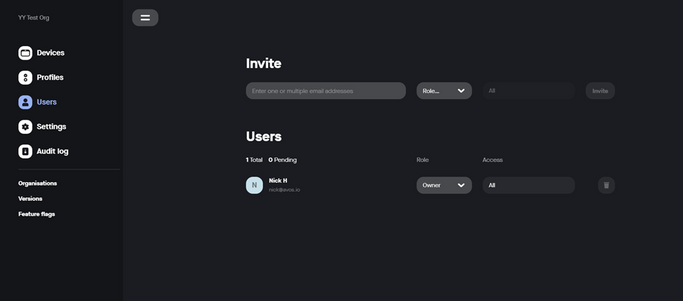
- An automated email will now be sent to the recipient’s email inbox.
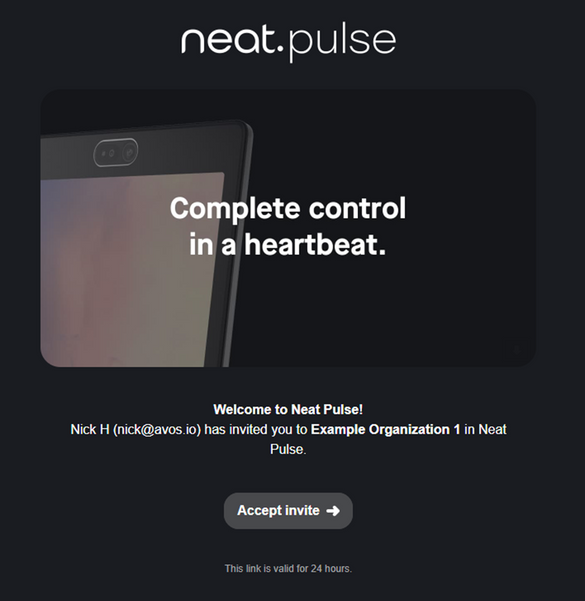
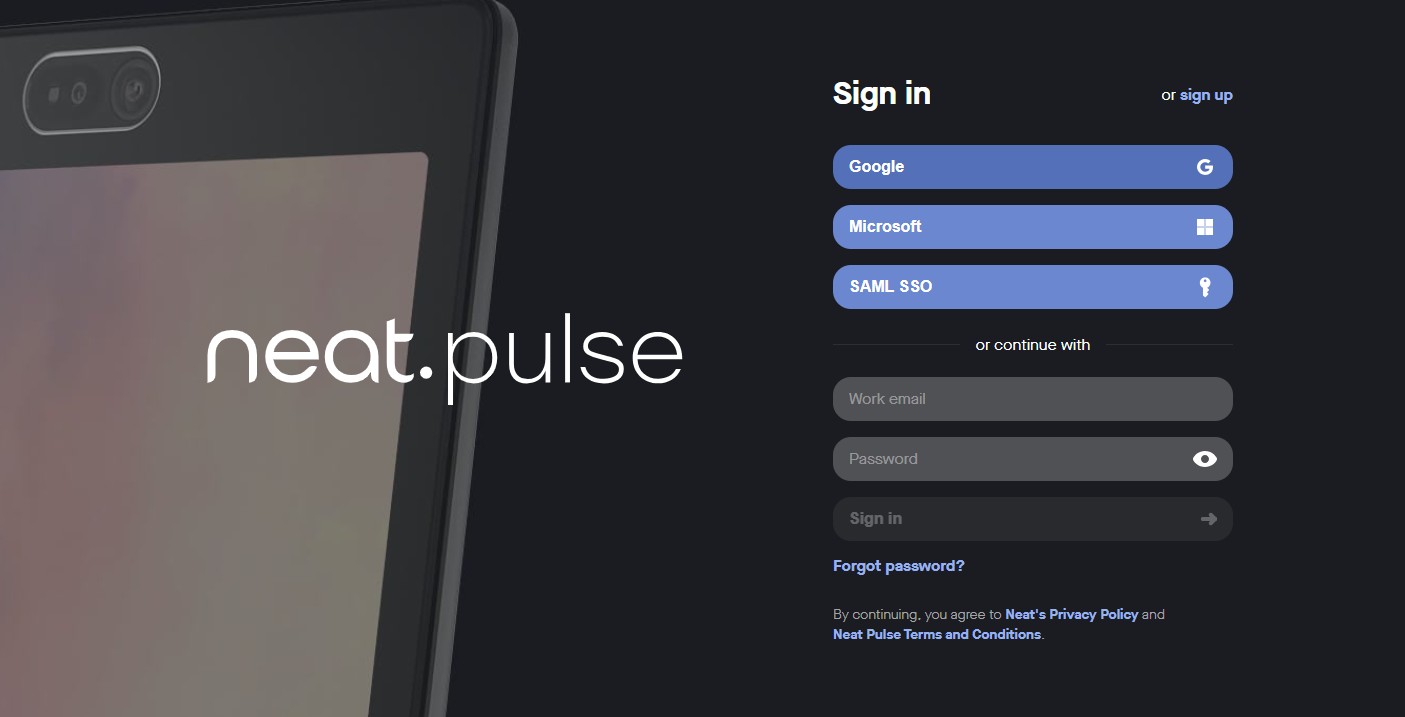
- The user needs to click on the Accept invite link to be redirected to the Neat Pulse sign-in page. From here, they can use one of the sign-in methods shown. (For more info, see the article Getting Started with Neat Pulse.)
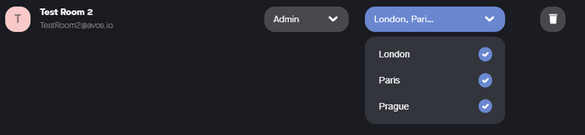
- After the user has been added, their user permissions can be altered (the example below shows how an Admin user’s location setting can be changed).
Users in Multiple Organizations
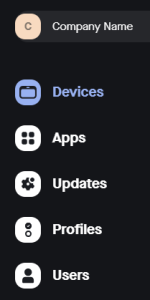
There is no limit to the number of organizations a user can be added to in Neat Pulse. Users who are in multiple organizations can navigate between them using the same credentials. To view the list of organizations, click on the current organization name in the left-hand menu.
In the example below, clicking on ‘Company Name‘ (Figure 5) takes the user to the Organization view (Figure 6) where they can view the organizations that they are member of in Neat Pulse.
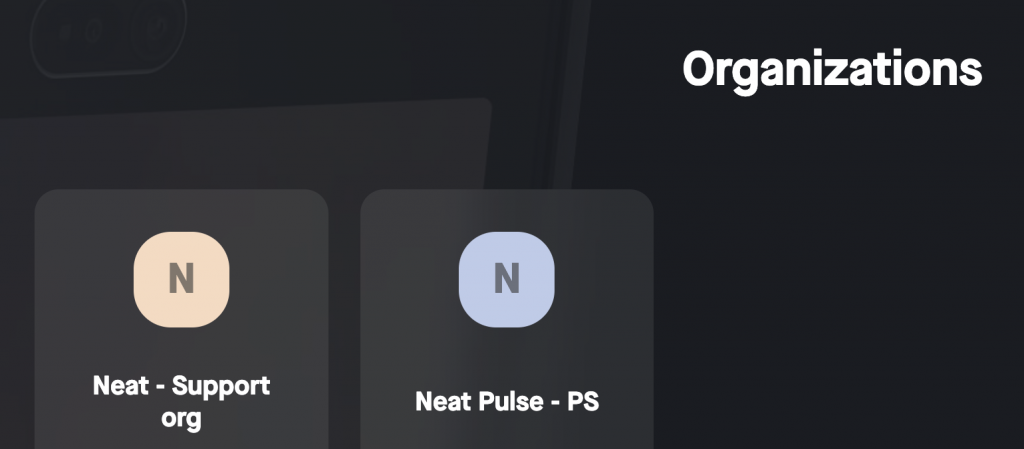
Users can have different privileges in each organization they are in, which means customers can add users from outside their organization as users of any type.