
Intelligent Framing on Neat Devices (Beta)
Last updated on September 23, 2026
Beta status. Intelligent Framing ships as Beta in NeatOS 26.5.0. The behavior, available options, and UI may change based on customer feedback before general availability. Beta features are enabled for all customers but are labeled Beta wherever they appear — in the on-device UI, in Neat Pulse, and in this article.
Contents
- What is Intelligent Framing?
- Supported devices
- The three framing modes: 3.1 Equal (default), 3.2 Highlights (Beta), 3.3 Highlights + room (Beta)
- How to configure Intelligent Framing on the device
- How to configure Intelligent Framing in Neat Pulse
- Recommended usage
- Frequently Asked Questions
1. What is Intelligent Framing?
Intelligent Framing is a set of AI-powered camera framing modes from Neat designed to give remote participants a more natural, dynamic view of large hybrid meeting rooms. Rather than fitting the meeting into a predetermined layout, Intelligent Framing continuously composes the view around who’s actually engaged in the conversation. This brings the most relevant participants forward while preserving awareness of the wider room.
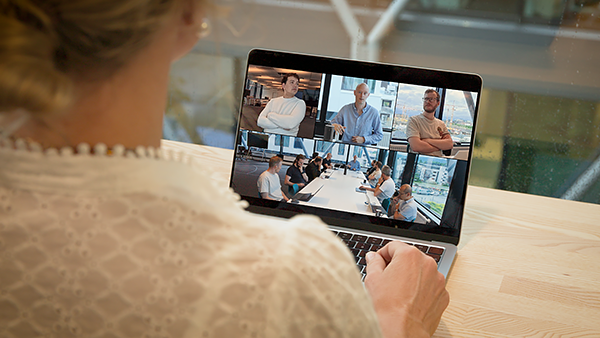
Note: Intelligent Framing builds on Neat’s existing Dynamic Framing (Neat Symmetry) technology. For the full set of camera modes available without Intelligent Framing enabled, see Dynamic Framing (Neat Symmetry).
Introduced in NeatOS 26.5.0 as Beta, Intelligent Framing adds two new modes: Highlights and Highlights + room — alongside the existing Equal framing behavior, which remains the default.
Powered by Neat’s distributed AI architecture and built on Neat Symmetry, Intelligent Framing adapts in real time to the flow of interaction, bringing participants forward based on who’s speaking, who’s recently spoken, and who’s most active in the conversation.
Intelligent Framing is optional and configurable, either directly on the device or centrally through Neat Pulse. Equal framing remains the default and can be selected at any time.
2. Supported devices
Intelligent Framing relies on voice localization and is therefore supported only on Neat devices with the necessary camera and audio hardware:
- Neat Bar Pro
- Neat Bar 2 (Neat Bar Gen 2)
- Neat Board Pro
- Neat Board 50
Intelligent Framing works best when the supported front-of-room device is paired with one or more Neat Centers. Neat Center extends audio and video coverage across the room and gives Intelligent Framing more information to work with — particularly for the Highlights + room mode.
Note: For a full breakdown of camera and framing behavior when one or more Neat Centers are paired with a front-of-room device, see Camera Framing Options for Neat Center.
Neat devices without voice localization—including Neat Bar (Gen 1), Neat Board (Gen 1), Neat Board 32, Neat Frame, and Neat Pad—do not currently support Intelligent Framing.
3. The three framing modes
Intelligent Framing gives you three ways to frame the room. All three are available on the device under System Settings → Audio & video and in Neat Pulse under Device Settings and Profiles.
3.1 Equal (default)
Everyone in the room is shown as an equally sized tile in a grid. This is the existing framing behavior on Neat devices. Equal keeps every participant equally visible and works well in small to medium rooms.
3.2 Highlights (Beta)
The most-engaged participants are shown as larger tiles that adapt in real time as the conversation unfolds. All other participants remain visible in a smaller strip alongside the highlighted tiles. This helps remote participants focus on who’s actively speaking without losing sight of the rest of the room.
You can choose how many people are highlighted at a time: 3, 6, or 8.
3.3 Highlights + room (Beta)
The same as Highlights, but combined with a persistent wide shot of the entire room. This preserves the sense of the room as a whole while still emphasizing the most-engaged participants. Highlights + room is particularly effective in larger rooms and in any deployment that includes one or more Neat Centers for room-wide coverage.
You can choose how many people are highlighted at a time: 3, 4, or 5.
4. How to configure Intelligent Framing on the device
Configure Intelligent Framing under System Settings → Audio & video → Intelligent Framing.
- Enter Neat System Settings:
- Microsoft Teams: Press More (…) on Neat Pad → Settings → Device Settings.
- Zoom Rooms: From the Neat Pad, tap Settings (gearwheel) → General → System Settings,
- Google Meet: Swipe in from the right edge of the display to open the Neat menu, then tap Settings.
- Microsoft Teams: Press More (…) on Neat Pad → Settings → Device Settings.
- Navigate to Audio & video → Intelligent Framing.
- Choose one of the three modes:
- Equal (default)
- Highlights (Beta)
- Highlights + room (Beta)
- If you select Highlights, choose the number of highlights (3, 6, or 8). If you select Highlights + room, choose the number of highlights (3, 4, or 5).
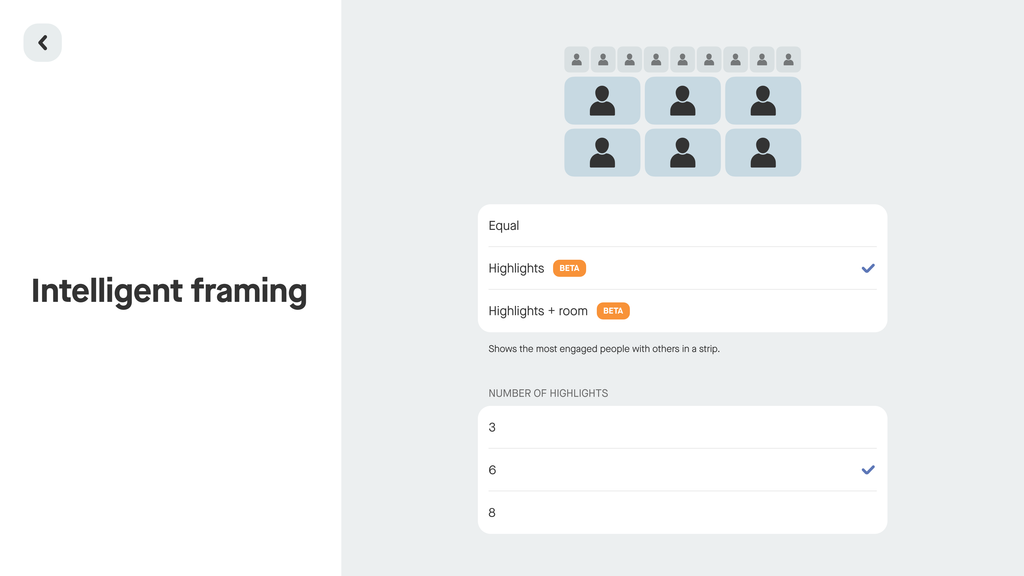
The change takes effect immediately. To revert to the default framing behavior, choose Equal in the same menu.
Note: The two Intelligent Framing modes carry a Beta tag on the device UI, in Neat Pulse, and in this article. Beta features may change based on feedback before general availability.
5. How to configure Intelligent Framing in Neat Pulse
Intelligent Framing can also be configured centrally in Neat Pulse, both per-device and via Profiles. This lets administrators apply consistent framing across a fleet of rooms.
Per device:
- In Neat Pulse, open the Device Settings view for the target device.
- Navigate to Audio & video → Intelligent Framing.
- Choose the mode, and the highlight count.
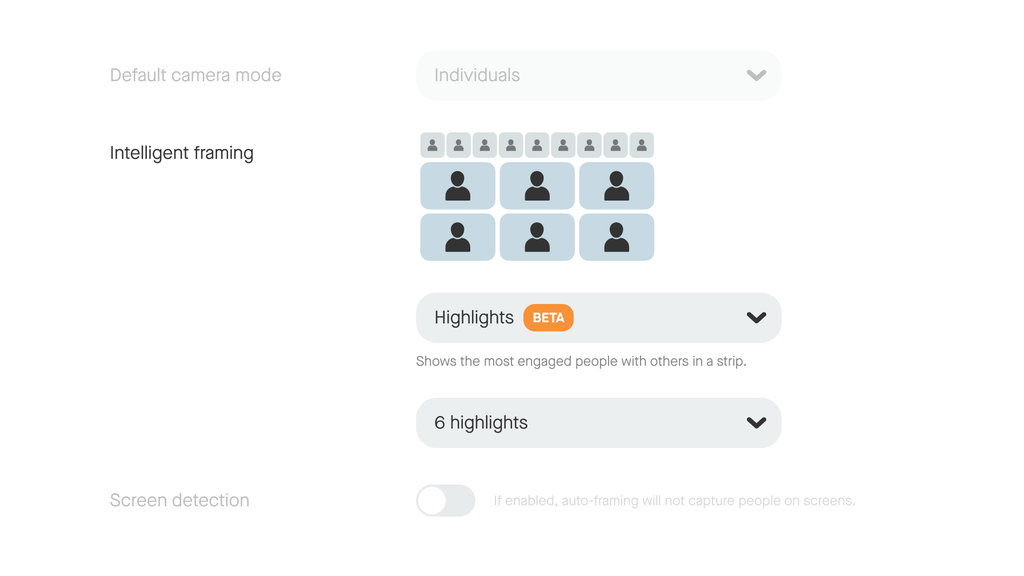
Via Profile (recommended for consistent multi-room deployments):
- In Neat Pulse, open the Profiles view.
- Edit or create a profile.
- Under Audio & video → Intelligent Framing, choose the mode and highlight count.
- Apply the profile to the target devices.
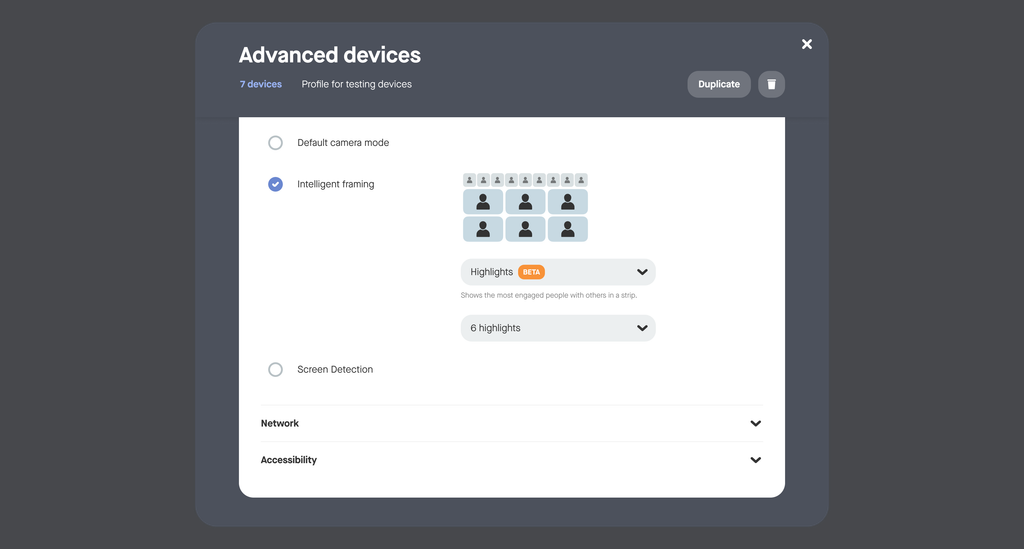
The Intelligent Framing controls in Neat Pulse are available across Google Meet, Microsoft Teams, and Zoom. For Zoom deployments that manage the default camera mode through ZDM, the existing behavior — where Default camera mode is disabled with the message “Configure the default camera mode in ZDM” — is preserved.
Note: Neat Pulse and the on-device UI read and write the same underlying configuration on the front-of-room device. Changes made in one place take effect in the other.
6. Recommended usage
There’s no strict rule for which framing mode suits a given room — it largely comes down to preference, and Intelligent Framing is designed to adapt across a range of room sizes and layouts.
As a starting point:
- Equal — a simple, evenly-sized view. Works well in any room and remains the default.
- Highlights + room — the most commonly preferred mode so far, since it keeps a full view of the room visible alongside the highlighted participants.
- Highlights — available if you’d rather not show the persistent room view.
If you enable Highlights or Highlights + room, start with 3 highlights and adjust from there based on how many people are typically active in the conversation.
7. Frequently Asked Questions
1. Is Intelligent Framing enabled by default?
No. The default framing mode remains Equal. Intelligent Framing modes (Highlights and Highlights + room) are Beta and must be selected explicitly, either on the device under System Settings → Audio & video → Intelligent Framing, or centrally in Neat Pulse.
2. Which devices support Intelligent Framing?
Neat Bar Pro, Neat Bar Gen 2, Neat Board Pro, and Neat Board 50. Intelligent Framing requires voice localization, which is not currently present on other Neat devices.
3. Do I need a Neat Center to use Intelligent Framing?
No, but Neat Center is highly recommended, particularly for the Highlights + room mode. Neat Center extends audio and video coverage across the room and improves the accuracy of the highlighted-participant selection.
4. Can I change the number of highlighted people?
Yes. In Highlights, you can choose 3, 6, or 8. In Highlights + room, you can choose 3, 4, or 5. You can change the count on the device or in Neat Pulse.
5. Will Intelligent Framing work in Google Meet, Microsoft Teams, and Zoom?
Yes. Intelligent Framing is a device-level camera behavior, independent of the conferencing platform. It works with Microsoft Teams Rooms, Zoom Rooms, Google Meet, and Neat Open. For Zoom deployments that manage the default camera mode through ZDM, the existing ZDM-managed behavior for Default camera mode is preserved.
6. How do I revert to the previous framing behavior?
Choose Equal under System Settings → Audio & video → Intelligent Framing on the device, or in Neat Pulse under Device Settings or Profiles. Equal is the existing behavior from earlier NeatOS releases.