How to Set Up Webhooks for Slack
Last updated February 26, 2026
Introduction
You can use Slack Apps to automatically post Neat Pulse notifications and alerts to a Slack Teams channel. This is a simple way to monitor device health, sign-in status, and other key events without leaving Slack.
Neat Pulse supports the Block Kit format to ensure that messages to Slack channels are properly formatted.
This guide walks you through:
- Creating and installing a new Slack app
- Adding a webhook trigger for incoming Pulse events
To learn how to set up a webhook for Microsoft Teams, see this article: How to Set Up Webhooks for Microsoft Teams.
Contents
Step 1. Prerequisites
To complete this setup, you’ll need:
- A Slack workspace where you have permission to create an app
- A Slack channel to post messages into
- A Neat Pulse account with Owner access
Step 2. Set up Slack
- Ensure that you have a channel that you want your webhook messages to be posted to. If not, start by creating a new channel.
- Go to https://api.slack.com/apps and click Create an App.
- When prompted, click From scratch.
- In the next screen, name your app and choose a Slack workspace. Click Create App.
- Under Features, click Incoming Webhooks. Click Add New Webhook.
- In the next screen, select the channel that you want to send messages to. Click Install.
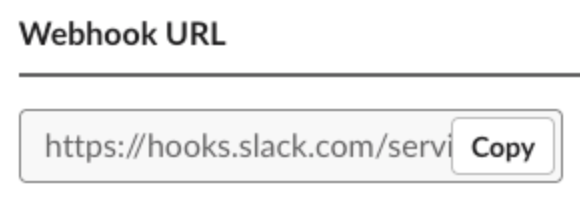
- Once saved, copy the URL corresponding to the channel you just set up (see Figure 1).
Step 3. Set up Neat Pulse
- In Neat Pulse, go to Settings → Alerts and Events.
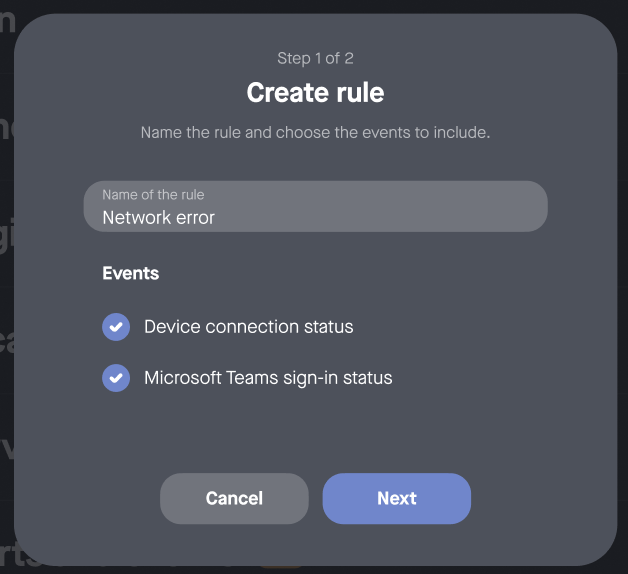
- Click Create rule. Name the rule and select what events you want to subscribe to (see Figure 2).
- Click Next.
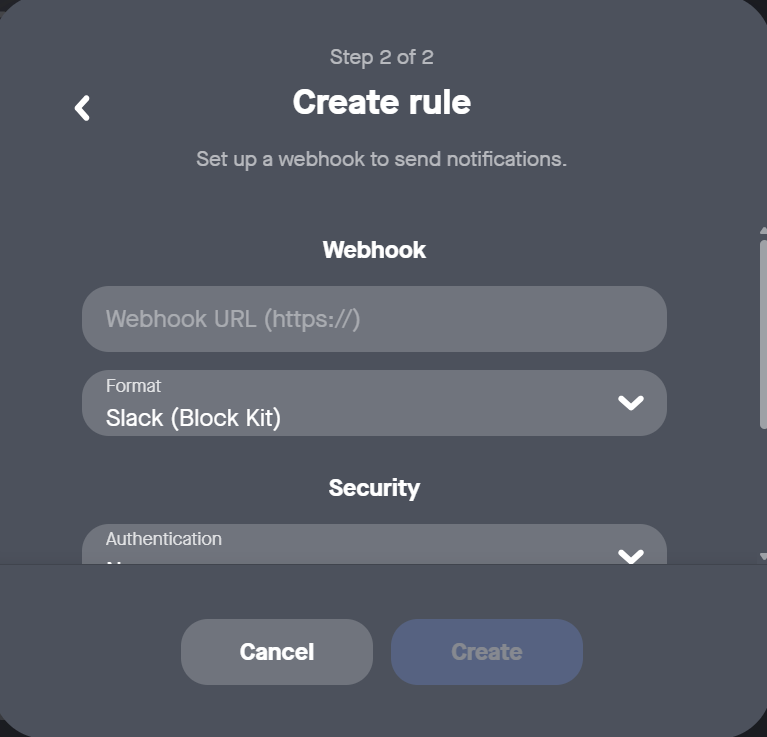
- To set up the webhook to send notifications, paste the webhook URL you copied from your Slack app (created in Figure 1), and choose Slack (BlockKit) as Format from the drop-down options.
- Scroll the side bar to select the Security options, see Figure 4. Select your method of authentication from the drop-down list and the Signing secret (optional); for more info on these fields, see Authentication and Signing.
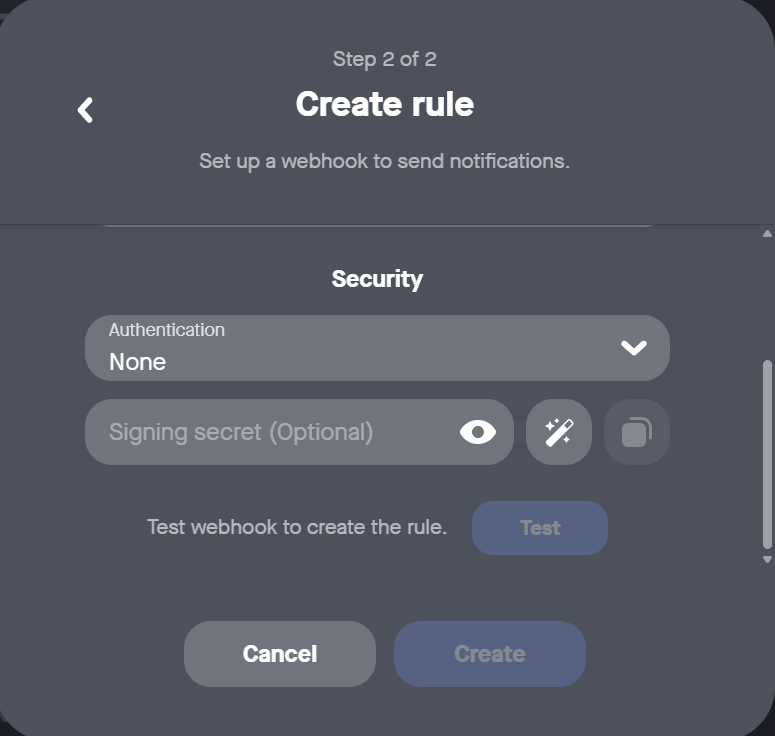
- Click Test. If the test succeeded, open your Slack channel to see the test message.
- Go back to Pulse and click Create.
For more info on how to register a webhook using API, see this section, How to register a webhook.
Your webhook is now configured both in Slack and in Neat Pulse.
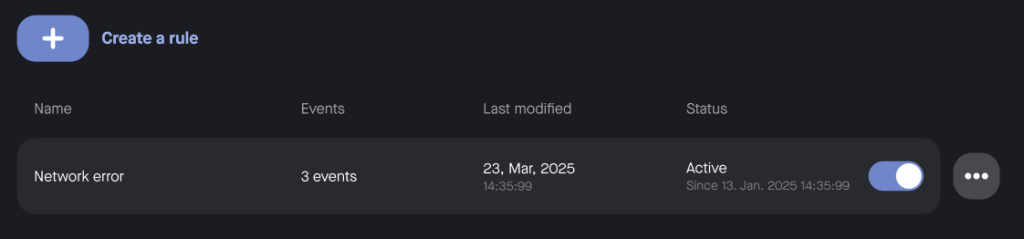
- New webhooks are deactivated by default. In Neat Pulse, click the toggle to activate the webhook and start receiving events (see Figure 5).
You will see the newly created rule and any associated events listed under Settings → Alerts and Events, from where you can also change the status and reconfigure.