
Neat Preview Channel Firmware
Last updated on October 22, 2026
If you would like to receive email notifications for new releases, please subscribe here.
This document details what features, improvements, and bug fixes are new in the Neat Preview channel when compared to the Stable update channel.
- Introduction
- Device and app Versions
- Important information about the Preview Channel
- What’s new in Neat OS 26.6.0
- Bug fixes
- Known issues
- How to check your software and firmware version
- Need help? We’re here for you!
For release notes covering Neat OS updates available only through the Microsoft Teams Admin Center (TAC), see our dedicated Microsoft TAC release notes page.
1. Introduction
Neat OS 26.6.0
On Thursday, October 22, we will roll out Neat OS 26.6.0 to our Preview Channel.
2. Device and app versions
| Preview release (October 22, 2026) | |
| The Neat firmware builds: | Android 10 – Neat OS 26.6.0: Neat Bar firmware: NFB1.20261012.1008 Neat Board firmware: NFC1.20261012.1008 Android 13 – Neat OS 26.6.0: Neat Pad firmware: NFA2.20261012.1308 Neat Bar Pro firmware: NFD2.20261012.1310 Neat Bar Generation 2 firmware: NFE2.20261012.1310 Neat Frame firmware: NFF2.20261012.1310 Neat Board 50 firmware: NFH2.20261012.1310 Neat Board Pro firmware: NFK2.20261012.1310 Neat Pulse Agent: Pulse Agent 2.6.104 Android 15 – Neat OS 26.6.0: Neat Pad Pro firmware: NFJ2.20261012.1516 Neat Center firmware: NFL2.20261012.1516 Neat Board 32 firmware: NFM2.20261012.1516 Neat Pad Generation 2 firmware: NFA5.20261012.1512 Built in Chromium version: M141 |
| The built-in Microsoft Teams versions: More information about the latest versions of Microsoft Teams can be found here: Release notes for Microsoft Teams Rooms on Android Release notes for Microsoft Teams devices – Teams Displays and Panels | The built-in Microsoft Teams versions: More information about the latest versions of Microsoft Teams can be found here: Release notes for Microsoft Teams Rooms on Android Release notes for Microsoft Teams devices – Teams Displays and Panels Microsoft Teams Rooms Devices (Neat Bar, Neat Bar Gen 2, Neat Bar Pro, Neat Board, Neat Board 50, Neat Board Pro, and a Neat Pad as a controller): Microsoft Teams Rooms: – Admin Agent (870): 1.0.0.202609172331.product – Teams Rooms Devices MTR-A (2.10.02:) 1449/1.0.96.2026144512 – Intune AOSP agent: 26.06.4 – Authenticator: 6.2609.6407 Microsoft Teams Panels: – Admin Agent (870): 1.0.0.202609172331.product – Panels (Panels 3.7.0): 1449/1.0.97.2026286706 – Intune AOSP agent: 26.06.4 – Authenticator: 6.2609.6407 |
| The built-in Zoom Room versions. More information about the latest versions of Zoom can be found here: New updates for Zoom Rooms Android Controller New updates for Zoom Room Appliances | Zoom Rooms Controller software version: 7.2.0 (5611) Zoom Rooms Appliance software version: 7.2.0 (10762) |
Keeping your Neat devices supported: The table above shows the compatible Neat firmware builds with Microsoft Teams and Zoom versions. To ensure you can receive technical support, please keep your devices on a supported software combination. If you experience an issue while using an older or unsupported version, Neat’s support team will ask you to update to a supported release before troubleshooting. For more details, check out our Neat Technical Support Policy.
3. Important information about the Preview Channel
At Neat, we use two channels for our software updates to give you the best experience.
- Stable Channel – This is where our finalized, production-ready updates are released, ensuring everything runs smoothly in your environment.
- Preview Channel – Before updates go live, we release them here for a few weeks. This lets you explore new features early and provide feedback.
The best part is that you already have access to both channels! So, whether you prefer rock-solid stability or an early look at what’s coming, you’re covered.
Please note that Preview updates are for evaluation and are not yet fully supported. We do not recommend installing Preview software on Neat devices used in a production environment. Ideally, you should use a Neat device that is in a lab or a lower-risk user environment to try out the Preview software. And please report any feedback or issues you find while testing to us using the steps outlined in section 7. Getting help from Neat. We would love to hear from you!
- Using Neat Pulse? Change the update channel in the device settings within Neat Pulse controls or via a room profile.
- For Zoom Neat devices: Go to System Settings → System → Software Update → Update Channel on Neat Pad, Neat Board, and Neat Frame.
- For Microsoft Teams Neat devices: Navigate to Settings → Device Settings → System → Software Update → Update Channel on Neat Pad and Neat Board.
If there is already a newer version available when you move your Neat device to the Preview channel, your Neat device will automatically download the new version and upgrade between 1:00 a.m. to 5:00 a.m. local time on the next day.
4. What’s new in Neat OS 26.6.0
Three Neat Centers is now Generally Available
Manual IP pairing: a new way to connect devices when your network blocks automatic discovery
Automatic proxy discovery for enterprise networks (WPAD)
Fuller speech with Voice Isolation in noisy rooms
Swap screens on Microsoft Teams Rooms
Neat Pad follows its Zoom Admin Portal role (Controller or Scheduling Display)
4.1. Three Neat Centers is now Generally Available: Bringing large-room coverage out of beta
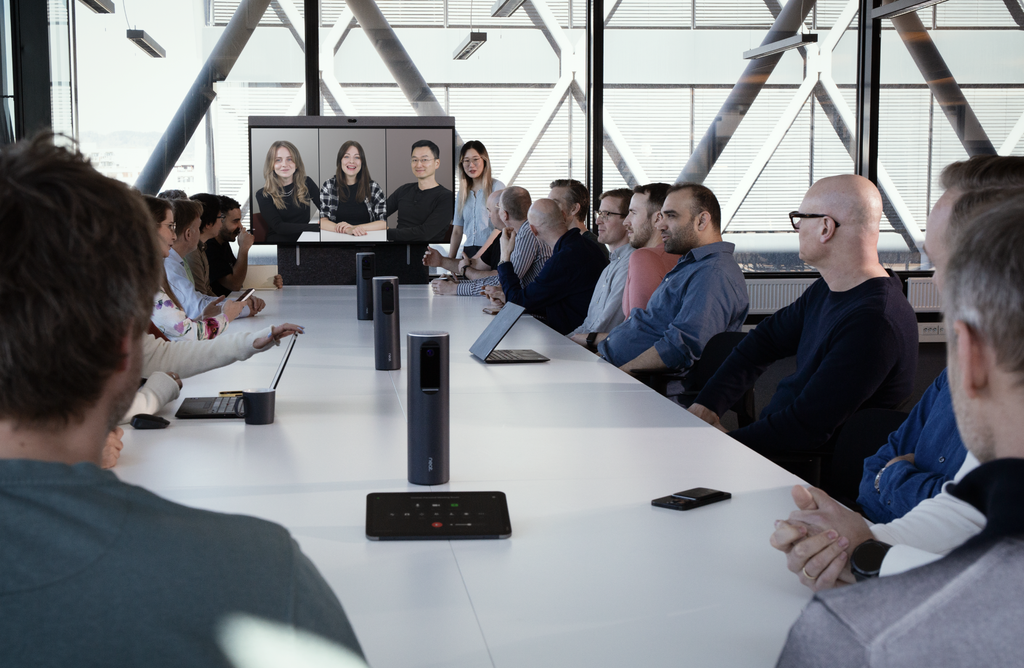
We’re excited to announce that three Neat Centers support is now fully supported — no longer a beta feature. Since we introduced multi-Neat Center support in Neat OS 25.4.2, organizations with large, complex rooms have been putting the three-Neat Center configuration to the test, and that feedback has driven a wave of video, audio, and deployment improvements. With Neat OS 26.6.0, the “beta” label is removed: three Neat Centers paired with a Gen2 Neat device is now officially supported for production deployments.
What does this mean for you?
- Production-ready for your largest rooms – Three Neat Centers is no longer labeled beta, giving you the confidence to deploy it at scale in large and XL rooms, including environments that previously held off rolling out beta features in production.
- Improved video stability – Continued refinement of Individual Framing and Intelligent Framing across three-Neat Center setups, building on the feedback gathered during the beta period.
- Flexible placement to fit the room – Three Neat Centers work in a range of configurations, for example three in a row along a long table, two on the table with a third dedicated to Neat Focus, a U-shaped table setup, or two dedicated to Neat Focus with one on the table.
- Broad Gen2 device support – Three Neat Centers can now be paired with any Gen2 Neat device: Neat Bar Gen 2, Neat Bar Pro, Neat Board 50, and Neat Board Pro.
How does it work?
- Pair three Neat Centers with any Gen2 Neat Bar or Board device to enable synchronized, large-room coverage.
- Individual Framing and Intelligent Framing both work seamlessly across all three Neat Centers, framing each person once from the best available angle.
- The audio mixer coordinates across all three Neat Centers, paired with voice isolation, to keep the active speaker clear regardless of where they’re sitting or standing.
- For deployment, plan for each Neat Center drawing roughly 11–12W over PoE — make sure your switch’s power budget accounts for all three Neat Centers (and any additional PoE-powered devices like a Pad) on the same room network.
4.2. Manual IP pairing: a new way to connect devices when your network blocks automatic discovery
Some networks block mDNS, the technology Neat devices normally use to find each other during setup. Until now, that meant pairing couldn’t happen on those networks at all. With Neat OS 26.6.0, installers have a manual fallback: Neat Bar or Neat Board shows its IP address on its pairing screen, the installer enters that address on Neat Pad, and pairing continues through the same secure PIN exchange used for standard pairing.
What does this mean for you
- Pairing works on stricter networks – Pairing now works even when mDNS is blocked, segmented, or restricted by Wi-Fi client isolation.
- No new hardware or setup required – Manual IP pairing is just a new way to find the device. Everything after that is the familiar pairing flow
- Supported across Neat Bars, Neat Boards, and Neat Pads – Also works for Neat Center – Pair a Neat Center manually too, from Neat Board’s system settings (“Can’t see your device?” > Add device). Since Neat Center has no screen to show its own IP, you’ll need to find it another way first — from your router, your DHCP lease list, or your network team.
Why this change
Many enterprise networks don’t allow mDNS. Until now, that left some customers unable to pair Neat devices on their network. Manual IP pairing gives installers a straightforward fallback, so a blocked network no longer blocks your rollout.
How it works
- During setup, Neat Bars or Neat Boards displays its IP address on screen. Neat Center has no screen, so find its IP from your router or network team instead.
- On Neat Pads (or Neat Boards, if you’re pairing a Neat Center), choose “Can’t see your device?” > Add device, and enter that IP address.
- Pairing continues as usual from there.
- Give Neat Bar or Neat Board a fixed IP address — either a static IP set on the device, or a DHCP reserved lease set on your router. This matters more than usual: in Neat OS 26.6.0, if that IP address changes later, you can’t just re-pair — you’ll need to factory reset the device and set up the room again.
4.3. Automatic proxy discovery for enterprise networks (WPAD)
Neat devices now discover and use your corporate proxy automatically on networks configured with WPAD (Web Proxy Auto-Discovery). During network setup, each Neat device requests a proxy configuration file from your DHCP server, retrieves it, and routes its outbound traffic through your proxy according to the rules in that file.
This covers everything the device sends out: Neat Pulse enrollment and telemetry, meeting-platform services (Google Meet, Microsoft Teams, Zoom Rooms), firmware updates, and diagnostics.
What does this mean for you?
- Plug-in-and-boot deployment – Once WPAD is enabled on Neat devices, IT teams no longer need to configure the proxy on each device by hand. IT teams get Neat devices onto the primary network the same way they onboard any other device.
- No more workarounds – Special VLANs, firewall bypasses, or one-off exceptions for Neat devices are no longer needed to route around missing WPAD support.
- Regulated environments unlocked – Deployments in networks where WPAD is a mandatory policy — for example in financial services, healthcare, government, and large enterprises — are now supported directly.
Why this change?
WPAD is the standard way corporate IT teams tell every device on the network which proxy to use for outbound traffic, automatically, without touching each device. Neat devices previously ignored the WPAD signal (DHCP Option 252), so customers had to either configure the proxy on every Neat device by hand, or design network carve-outs to route Neat traffic around the proxy. Neat OS 26.6.0 closes that gap and brings Neat in line with the enterprise-network expectations of any other device in the room.
How does it work?
Turn on Automatic proxy discovery (WPAD) in the device’s network settings. Once enabled, the device requests DHCP Option 252 each time it joins the network. If your DHCP server advertises Option 252, it returns the WPAD URL automatically — there’s nothing to enter manually — and the device fetches the PAC (Proxy Auto-Config) file from that URL and applies its rules to all outbound traffic. If your DHCP server doesn’t advertise Option 252, the device operates as before, with no proxy applied.
Supported devices
Available on all Neat devices running Neat OS 26.6.0.
4.4. Fuller speech with Voice Isolation in noisy rooms
With Voice Isolation on, Neat OS 26.6.0 makes voices sound fuller and more natural in noisy rooms, and when people talk from further away from the microphones.
What does this mean for you?
- More bass in the voice – Voices no longer sound thin when there’s a lot of background noise.
- Clearer from a distance – Speech stays full and natural even when people are further from the microphones.
4.5. Swap screens on Microsoft Teams Rooms
Displays in a Microsoft Teams Room are meant to show Date & Time on the left screen and the room calendar on the right. If yours are wired the other way around, IT admins can now fix it with a “swap screens” setting instead of re-cabling.
What does this mean for you?
- No re-cabling or site visit: Swap the left and right displays from the Teams Admin Settings on the device, or remotely with a per-room toggle under Meetings Settings in Pro Management Portal — or across multiple rooms at once with the new Settings Template in Pro Management Portal.
- Easier migrations: Useful when moving a room from another platform where the displays were wired for a different layout.
Good to know
Swap Screens requires Android 13, so it’s not available on Neat Bar Gen 1 or Neat Board. It’s also an admin setting, not something switched mid-meeting, and it reverts to off after a factory reset or an account change that doesn’t support it — so you’ll need to reapply it then.
4.6. Neat Pad follows its Zoom Admin Portal role (Controller or Scheduling Display)
With Neat OS 26.6.0, a Neat Pad managed in Zoom Device Management now picks up the role assigned to it in the Zoom Admin Portal. Assign it to a room as a Controller or Scheduling Display, and Neat Pad signs in to that role automatically. You can switch roles remotely, with no factory reset and no visit to the room needed.
5. Bug fixes
Platform
| Issue reference | Description |
| CUS-1994 Fixed in 26.6.0 | Fixed an issue where a Neat Pad could unexpectedly factory reset itself during normal operation, going offline in Neat Pulse and losing its pairing with the room device. |
| CUS-2310 Fixed in 26.6.0 | Updated the time zone database in Neat OS to reflect British Columbia’s move to permanent UTC−7, which begins in November 2026. The latest time zone data is now included on Android 10, Android 13, and Android 15 devices, so devices on Neat OS 26.6.0 keep the correct local time. |
Alliances (Microsoft Teams/Zoom Rooms)
| CUS-2292 Fixed in 26.6.0 | Fixed an issue where a Neat Pad running Microsoft Teams could get stuck at startup with an AOSP migration failure message, requiring a factory reset to recover. |
| CUS-2282 Fixed in 26.6.0 | Fixed an issue where Neat devices in Zoom Rooms mode could lose their pairing during a Zoom Rooms app upgrade, disconnecting controllers and scheduling displays from the room until the pairing code was re-entered. |
Video, camera, layouts
| CUS-2299 Fixed in 26.6.0 | Fixed an issue in Zoom Rooms where individual people streams were cropped too high after switching the camera mode from Multifocus to Multistream, so a stream could show only the top of a person’s face or miss them entirely. People are now framed correctly in their individual streams, whichever camera mode Multistream is selected from. |
| CUS-2234 Fixed in 26.6.0 | Fixed an issue where the Intelligent Framing setting reset to Equal right after a device reboot, so meetings could run without the chosen framing layout. |
| CUS-2342 Fixed in 26.6.0 | Fixed an issue introduced in Neat OS 26.5.3 where the video image could appear squeezed on Intelligent Framing layouts with room context whenever the room was empty — regardless of when the layout had been selected. The view now falls back correctly when no people are detected, so the image displays with the correct proportions. |
Audio
| CUS-2258 Fixed in 26.6.0 | Fixed an issue where Neat Bar Pro and Neat Bar 2 stopped sending microphone audio during a call when a display was unplugged from HDMI 2 or HDMI 3 while HDMI audio out was enabled. |
| CUS-2306 Fixed in 26.6.0 | Fixed an issue where turning on Audio over USB didn’t take effect until the device rebooted or the USB audio device was reconnected. Until then, far-end audio kept playing through the built-in speakers instead of the connected USB audio device, such as an external DSP. |
| CUS-2327 Fixed in 26.6.0 | Improved how Neat Bar Pro recovers its audio when a connected Neat Center briefly drops off the network or restarts during a call. |
| CUS-2343 Fixed in 26.6.0 | Improved audio stability for Neat Board Pro with Neat Center when the network delivers audio unevenly, which could otherwise distort speech picked up by Neat Center. |
6. Known issues
| Issue reference | Description |
| INBUGS-4416 Introduced in 26.3.0 | We’ve identified an issue in which the screen may briefly flash black when opening the swipe-left menu on the Neat Board 32 in BYOD-only mode. The flash is short but visible, and it may momentarily interrupt the in-room visual experience. |
| INBUGS-4331 Introduced in 26.3.0 | We’ve identified an issue where disabling Color Correction (Settings → Device settings → Accessibility → Color Correction) does not take effect immediately. Enabling Color Correction and switching between options work as expected, but disabling the feature is not applied until the next screen frame is rendered. In typical use, the change is reflected within about 30 seconds — the delay can be longer in rooms with multiple connected displays, or if the device is left idle with no user interaction. This behavior is due to how Android handles screen rendering and is not expected to be resolved. |
| INBUGS-4390 Introduced in 26.1.0 | We’ve identified an issue where Neat devices running Google Meet will not display the Framing Boundary tutorial under Settings > Audio & Video > Framing Boundary. When running the How it works tutorial, an error is shown instead of the tutorial content. As a workaround, dismiss the dialog by tapping OK, then close it using the X in the upper-right corner. |
| INBUGS-4185 Introduced in 26.1.0 | We’ve identified an issue where devices configured in Auto BYOD mode may take longer than expected to exit a BYOD session after the USB cable is disconnected from either the device or the host laptop. This can result in a noticeable delay before Zoom or Microsoft Teams restarts. In some cases, if audio is being shared at the time of disconnection, a brief audio spike may be heard just before the BYOD session ends. This issue affects devices running Zoom and Microsoft Teams in Auto BYOD mode, and a fix is being worked on to improve the transition experience. |
| INBUGS-3399 Introduced in 25.4.0 | For EFT-customers: Accessing Neat settings during a Google Meet call may end the call. An issue may occur when opening the Neat settings menu from the swipe menu during an active Google Meet call. Changing certain settings — such as Dark Mode or Language — while in a call may cause the meeting to end unexpectedly. We recommend avoiding changes to Neat settings during an ongoing Google Meet call until this issue is resolved. |
| INBUGS-3021 Introduced in 25.3.0 | We’ve identified an issue where in some cases, boundary green boxes can appear on the FOR and Neat Center when changing the Camera Selection options. |
| INBUGS-3100 Introduced in 25.3.0 | We’ve identified an issue where the minimum depth/diameter setting for Framing Boundary on Neat Center is not available when camera selection is set to automatic.This option is only visible when using custom camera selection, which can cause confusion if a user sets a minimum depth while in custom mode and then switches back to automatic. In this case, the previous minimum depth setting will still be active but hidden, with no way to adjust it unless the user switches back to custom camera selection. |
| INBUGS-3101 Introduced in 25.3.0 | We’ve identified an issue with the minimum and maximum values for the Framing Boundary width and depth sliders. This does not affect most users but may limit how precisely the framing area can be adjusted in very small spaces. |
| INBUGS-3006 Introduced in 25.3.0 | We’ve identified an inconsistency in how the Camera Selection preview appears when using a Neat Board and Neat Pad together. When a camera is selected using a Neat Pad paired with a Neat Board, the full-screen Preview view appears on the Neat Board, similar to how it works on a Neat Bar/Neat Pad setup — this is the expected behavior. However, if the camera selection is done directly on the Neat Board, a Picture-in-Picture (PIP) window is shown instead. This difference in behavior may cause confusion about what to expect when switching between the Neat Board and Neat Pad for camera selection. |
| INBUGS-3038 Introduced in 25.3.0 | We’ve identified an issue where a camera’s LED will stay on during ongoing calls when that camera is disabled in Camera Selection. This can happen on Neat Board Pro and Neat Center devices. For example, if the Neat Center camera or Board Pro camera is disabled before joining a Microsoft Teams meeting, its LED may still light up even though the video feed is not active. This behavior is due to how the camera streams and how it’s exposed to the app, and does not affect meeting functionality — but it may be confusing for users who expect the LED to turn off when the camera is disabled. |
| INBUGS-3099 Introduced in 25.3.0 | We’ve identified an inconsistency in the Framing Boundary slider labels on Neat Center. When Camera Selection is set to Automatic, the slider uses Diameter with a range of 0–10 m. When Camera Selection is set to Custom, it uses Depth with a range of 0–5 m. The ranges are technically correct, but the naming inconsistency may cause confusion. We plan to align the terminology to Depth in a future update. |
| CUS-1579 Introduced in 25.3.0 | Since Neat OS 25.2.0 release, Neat Pads running Microsoft Teams could respond very slowly to user actions, such as joining a call or changing a setting, and in some cases show a black screen. The root cause of this issue is under investigation. More information about this technical issue can be found here. |
| ZTC-118 | When using Neat Board Pro in Companion Zoom Room mode, connecting a peripheral device (e.g. a laptop) to the Neat Board’s local input port causes Zoom to log out of the Companion ZR mode. This occurs because when the local input port is used, the touch-ability of the Neat Board is disabled by design (as in this mode, the Neat Board is being used outside of Zoom as an independent display). However, since Zoom expects the display to be a touch-enabled device at all times, it notices this change and logs out from the Companion ZR mode. This is a known limitation (however expected) as the local input port is not considered part of the Zoom’s work-flow and therefore not supported. |
| ZOOM-93 | In this release, it is not possible to disable Zoom’s ‘Advanced Noise Suppression’ feature. As a result, any users using the ‘Music mode’ feature will notice that their audio is being suppressed by Zoom’s noise suppression algorithm, making the experience poor. This issue is being investigated by the Zoom engineering team. |
| INBUGS-1664 | In this release, switching between external audio hardware and the internal speaker while using Audio over USB on a Neat Bar Pro does not always work during a Zoom meeting. |
| INBUGS-2502 | Neat Bar Gen 2 can show a shifted layout during OOB phase when connected to some high resolution monitors. |
| CUS-1181 | If an update is requested via Pulse (by changing profile to a newer channel such as Preview from Stable) OR all devices are restarted at the same time when an upgrade is available it can synchronise the OTA polling across the devices for a site.Assuming the devices for the site are all on the same network, the Neat devices will then simultaneously request to download from the Neat OTA servers their upgrade files (around 1GB worth of data per device). When there are many devices doing this on certain networks it can potentially cause network throttling or alert security monitors that block the downloads part way through.If a device has started the upgrade procedure and it is unable to complete within the set upgrade window (1am – 5am local time) it can cause the device to be stuck on a purple upgrade screen and a restart (via Pulse or by removing the power to the device) is needed to restore functionality. |
| INBUGS-2985 Introduced in 25.2.0 | If CEC is enabled on Neat Bar (Neat Bar 2 or Neat Bar Pro) and the CEC-enabled monitor connected to Neat Bar is turned OFF, Neat Bar will go to sleep as a result of the monitor being turned off. However, turning the monitor back on will not wake Neat Bar. If auto-wakeup is disabled, the only way to wake Neat Bar is by touching a connected Neat Pad. If auto wake-up is enabled on Neat Bar, the device will wake up as normal by motion detection. |
7. How to check your software and firmware version
Here’s how to find out if your Neat device is running the latest build:
- For Zoom Rooms: Select Settings (bottom left) on your Neat Pad, Neat Board, or Neat Frame, then select About. You’ll see the Zoom software version on the right.
- For Microsoft Teams: Select More on the main screen, then go to Settings → About to view the Microsoft Teams software version.
- For Neat Firmware: On your device, go to System Settings → System → About to find the firmware version and serial number.
You can also check the Zoom Room administrator portal or the Teams Admin Center (TAC) online to see the serial number and firmware version of your Neat devices.
Note for Neat Pads and devices enrolled in Neat Pulse: You can normally check for updates on the device’s Software Update page. But if any of your Neat devices are enrolled in Neat Pulse, that option will be greyed out. In that case, just head over to Neat Pulse to view and manage updates.
8. Need help? We’re here for you!
For quick answers and troubleshooting, check out our Neat Support website, where you’ll find helpful articles, FAQs, and step-by-step guides. We regularly update our content to make finding solutions easier.
If you need further assistance, our support team is ready to help! Simply raise a support ticket with us, and one of our technical support engineers will get back to you.
Privacy Policy: You can review our privacy policy here: Neat Privacy Policy.
Support Policy: Neat provides support for devices running the current or previous software release. For full details, see Neat’s Technical Support Policy.