
How to Set Up Neat Bar (Gen 1)
Last updated October 13, 2026
Neat Bar (Gen 1) is a simple and elegant, highly capable meeting room device in a compact design. You can mount Neat Bar above or below one or two monitors, when used with Neat Pad (Gen 1), our dynamic touch screen, it allows you to control all the meeting room functions. Together Neat Bar and Neat Pad can provide you with a complete video conferencing experience.
This article gives simple step-by-step instructions on how to setup your Neat Bar with a Neat Pad (brand new or after a factory-reset).
Note: Neat Gen 1 devices (i.e. Neat Board and Neat Bar) can only pair with a Neat Pad Gen 1, they cannot pair with a Neat Pad Gen 2.
Note: For information on using your Neat Bar without a Pad (i.e. BYOD mode), see the article How to Set Up and Use Neat Bar BYOD Mode (without Neat Pad).
Important note: For information on the Neat End of Sale and End of Support for Neat Bar, see the article Neat End of Sale and End of Support Notice.
Contents
- 1. Prerequisites
- 2. What’s included
- 3. Setting up your Neat Bar
- 3.1 Power up your Neat Pad
- 3.2 Power up your Neat Bar
- 3.3 Choose your setup scenario
- 3.4 Choose your mounting configuration
- 3.5 Connect Neat Pad and Neat Bar to the internet
- 3.6 Select time zone and clock
- 3.7 Choose your Neat Bar
- 3.8 Enroll your device on Neat Pulse (optional)
- 3.9 Share device analytics with Neat
- 3.10 Adjust your camera
- 3.11 Choose your platform
1. Prerequisites
- The Neat Bar and Neat Pad must be on the same subnet to be able to pair successfully and complete setup. Before proceeding, please read the article Network and Firewall requirements for Neat devices.
- If you are planning to use Wi-Fi, please read the article Wi-Fi support on Neat devices. For step-by-step instructions, follow the guide How to connect your Neat Bar and Neat Pad over Wi-Fi.
2. What’s included
Note: Neat Bar and Neat Pad need to be ordered separately. Neat Pad is not included automatically when you order a Bar.
2.1 Neat Pad
- Open the smaller box for the Neat Pad first.
- Inside the box you will find the Neat Pad itself, a Quick start guide, a Power-Over-Ethernet injector, and several international plugs that you can choose from depending on where you are in the world. Also included is wall-mounting hardware. Note: You will only need to use the wall-mounting hardware if you plan to use your Neat Pad as a scheduling display.
2.2 Neat Bar
- Open the larger box that houses your Neat Bar.
- Inside the box, you’ll find your Neat Bar, a Quick Start Guide and the mounting hardware (a table-top mount, a wall mount, a universal mounting bracket, and a monitor mount). In addition, the box includes HDMI cables and the power cables for your region.
3. Setting up your Neat Bar
3.1 Power up your Neat Pad
- If you have Power-Over-Ethernet (PoE) built into your network, simply use the Ethernet cable (supplied) to plug your Neat Pad directly into an Ethernet port to receive network and power. For more information on PoE, please see the article: Neat Pad: Power over Ethernet (PoE) requirements.
OR
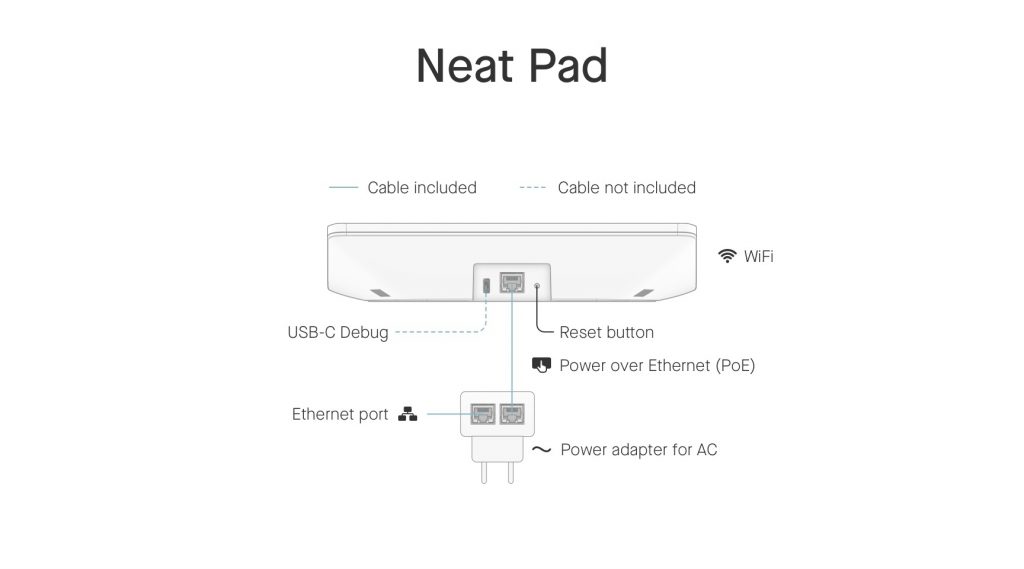
- If you don’t have PoE, then you can use the PoE injector (supplied) to power your Neat Pad. There are two interfaces on the PoE injector: a Power interface, to power the Neat Pad (icon shows a Pad with a finger); and a LAN interface, to connect the Neat Pad to your wired network (icon shows wired LAN). See the image below.
- To power the Neat Pad, use an Ethernet cable to connect the Pad to the PoE injector’s Power interface. Then plug the PoE injector to your power outlet/plug socket.
- Next, if you want to connect your Neat Pad to wired Ethernet, connect the PoE injector’s LAN interface to your network port using an Ethernet cable. Note: if you want to connect Neat Pad using Wi-Fi, skip this step.
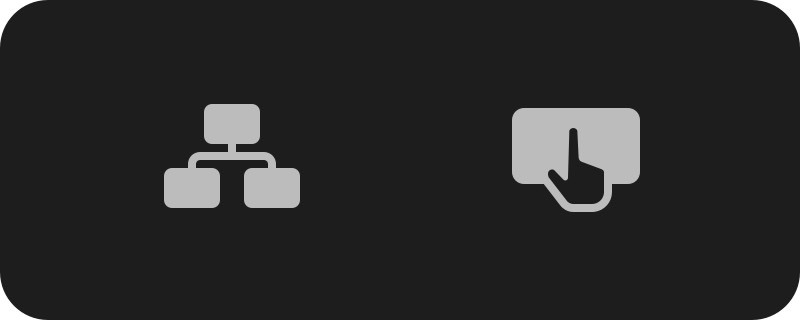
a)Power interface (right)
b) LAN interface (left)
3.2 Power up your Neat Bar
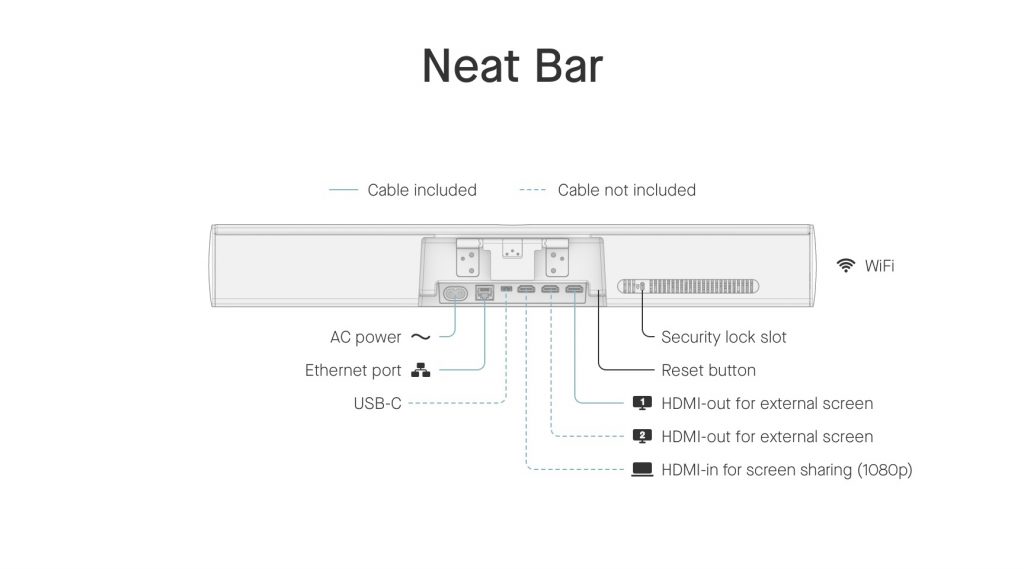
- Connect the Neat Bar to AC power and to the TV screen using the HDMI output.
Note: If you are using a single TV screen, make sure you connect to Neat Bar’s HDMI 1 output. - If you want to connect the Neat Bar to wired network, connect it to your network switch using an Ethernet cable. However, if you are using Wi-Fi, do not connect the Ethernet cable.
Note: if a Neat device has wired Ethernet connection to it, it will always use Ethernet. In order to force a Neat device to use Wi-Fi, there should be no wired/Ethernet connection cable physically connected.
Once this is done, follow your Neat Pad’s instructions and set the language and click Continue.
3.3 Choose your setup scenario
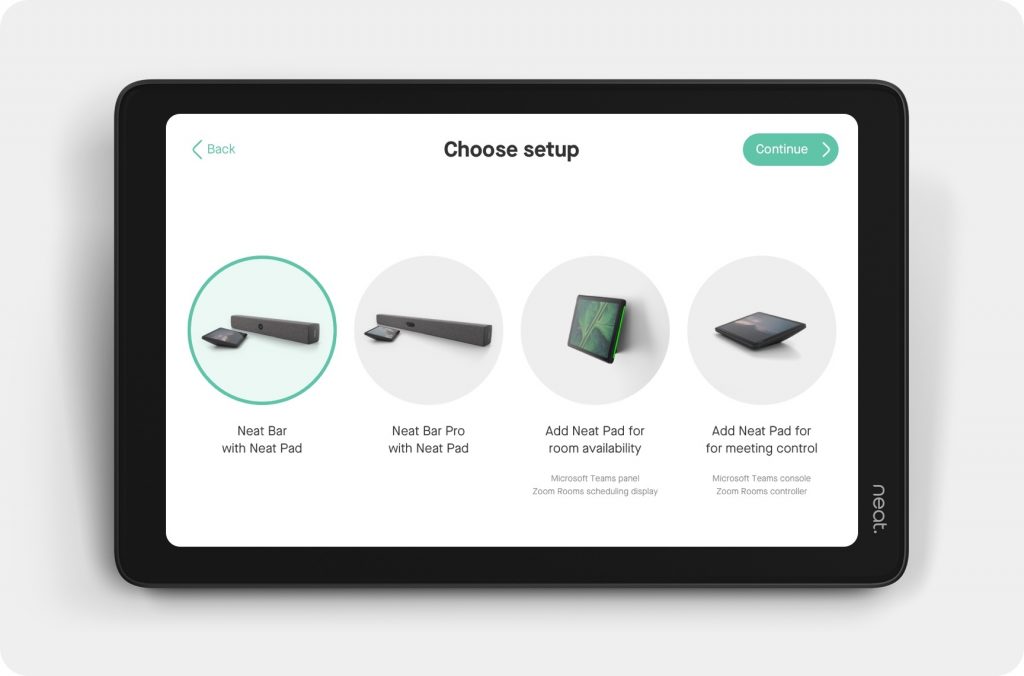
You will have four set-up options. If you are setting up a Neat Bar, the Neat Pad needs to be paired with the Bar. To do this, select Set up Neat Bar and click Continue.
If you are using the Neat Pad as a standalone device, choose one of the other two options for room availability (Zoom: Scheduler/ Microsoft: Team panel) or meeting control (Zoom Room Controller/ Microsoft Teams Console).
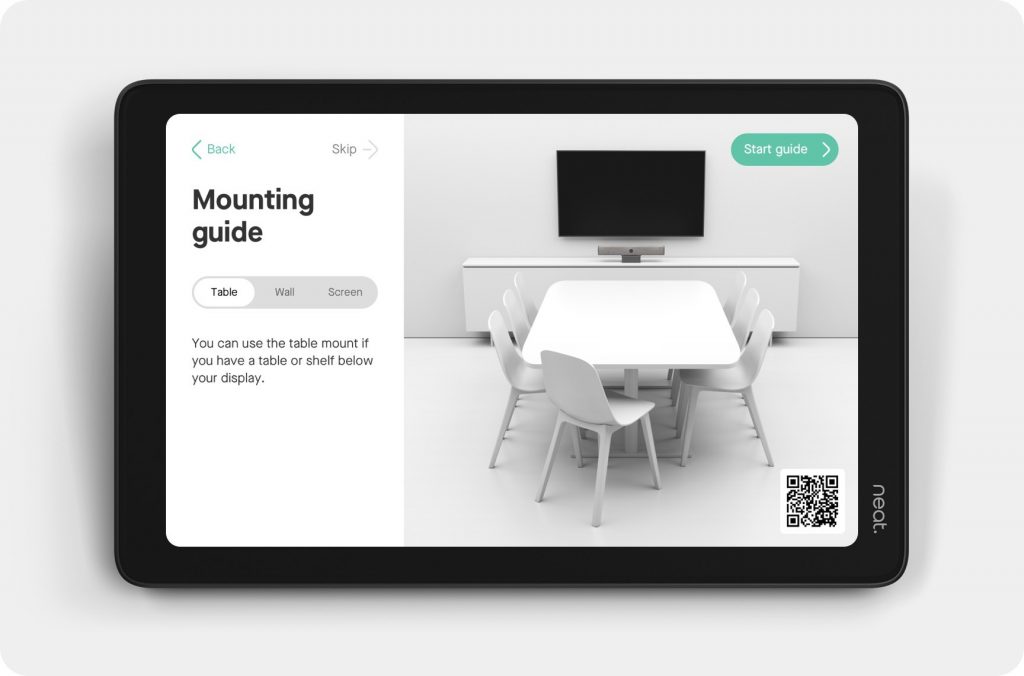
3.4 Choose your mounting configuration
You can choose between Table, Wall, or Screen mounting. The set-up Wizard will walk you through the appropriate steps to set up the Neat Bar depending on your choice.
3.5 Connect Neat Pad and Neat Bar to the internet
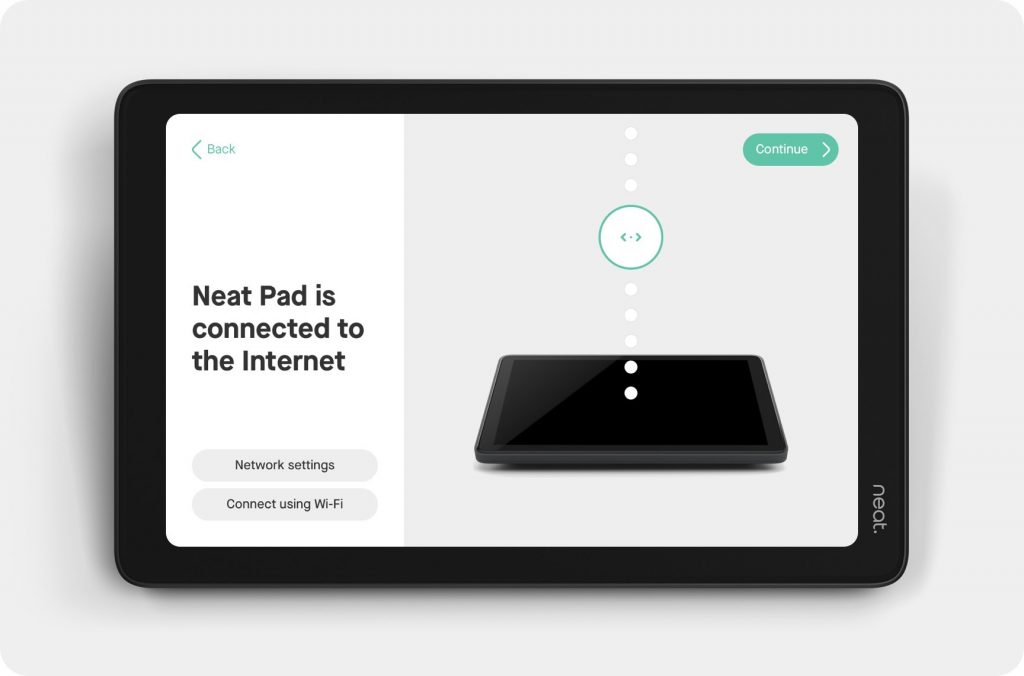
If you’ve connected Neat Pad and Neat Bar using Ethernet cables to a wired network, you should be connected to the internet automatically. Otherwise, you will need to connect Neat Pad to Wi-Fi. If you are using Wi-Fi, follow the instructions in How to connect Neat Bar and Neat Pad over Wi-Fi.
3.6 Select time zone and clock
Once the network connection is established, click Continue to select a time zone to use on your device and click Continue. You then have the option to select a 24-hour clock on the Time page. Click Continue.
3.7 Choose your Neat Bar
Your Neat Bar should be powered up and connected to a display using its HDMI 1 port. You should now see the Neat Bar’s serial number on the display screen (if you do not see this, it is possible your TV screen is not set to the correct input).
- The Neat Bar serial number should now appear on Neat Pad (you may see multiple serial numbers if you have multiple Neat Bars in your office).
- Select the correct serial number and click Continue.
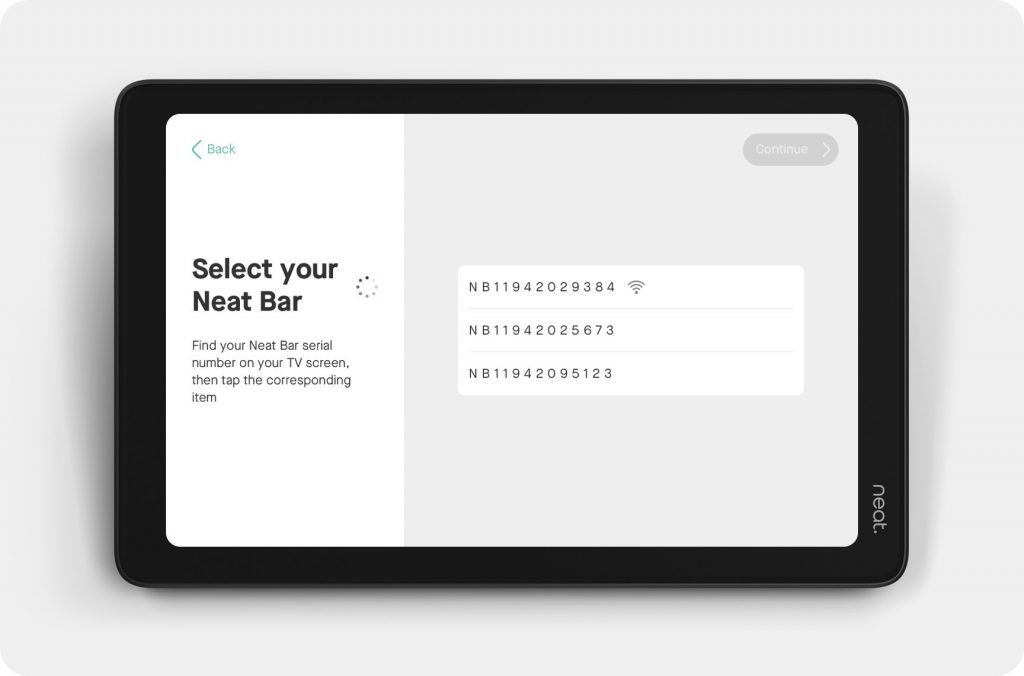
- The Neat Bar and Neat Pad should now pair successfully. Once Neat Bar and Neat Pad have paired, you will see a green check mark appear on Neat Bar’s display, and hear a chime.
- Neat Bar and Pad will now download any software updates available. Do not unplug Neat Bar or Neat Pad while they update.
3.8 Enroll your device on Neat Pulse (optional)
The next screen gives you the option to enroll your devices on Neat Pulse. If you don’t wish to enroll your devices at this point, click Skip. Otherwise follow these steps.
Important Note: You can only use your device to access apps on Neat Open Apps after you have enrolled your device on Neat Pulse.
- Go to https://pulse.neat.no/ and login.
- If you already have a named space created in Pulse that you wish to add your Neat device to, simply open that space and click Generate Code.
If you want to create a new named space in Neat Pulse or find out more information on enrolling devices to Pulse, see the article How to Enroll a Device in Neat Pulse. - Enter the generated code on the Neat Pad screen.
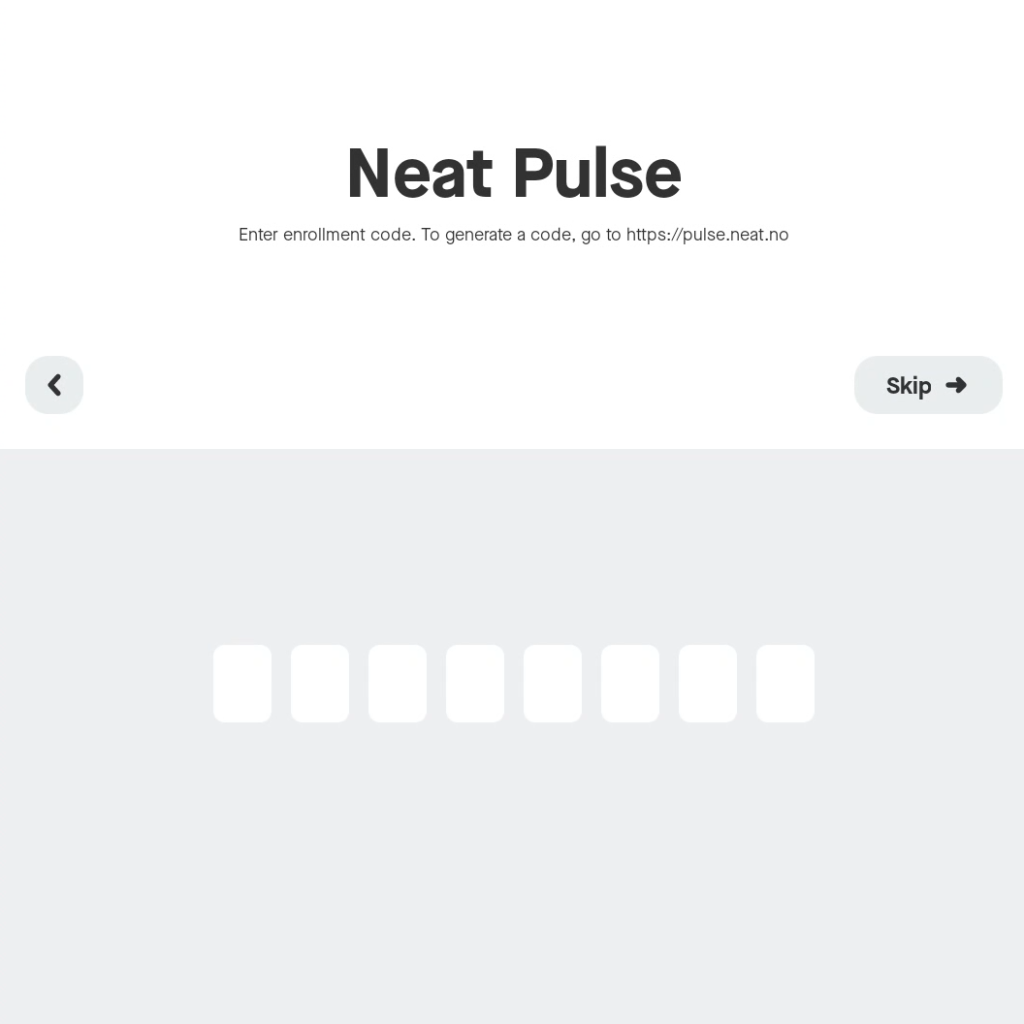
- The screen will show a progress bar to confirm that it is enrolling the devices on Neat Pulse. Do not unplug your devices during this process.
- Once completed, the Pad screen will show that the devices have been added to Neat Pulse.
- If you view Neat Pulse you will now see your newly added device in the designated named space.
- Click Continue.
Note: If you skipped this step and wish to enroll your device on Neat Pulse at a later date, simply go to Settings > General > System settings > Add to Neat Pulse on your device interface and follow the steps above.
3.9 Share device analytics with Neat
The next page is for Analytics and Improvements. You have the option to enable or disable sharing device analytics with Neat using the toggle button. Click Continue.
3.10 Adjust your camera
Next, you’ll be prompted on the Neat Pad to adjust your Neat Bar to optimize your audio and video experience. The Bar will give a camera preview on the TV screen.
3.11 Choose your platform
You will now be asked to choose your platform. Once you have selected your preference click Continue to begin installing your preferred video conferencing platform.
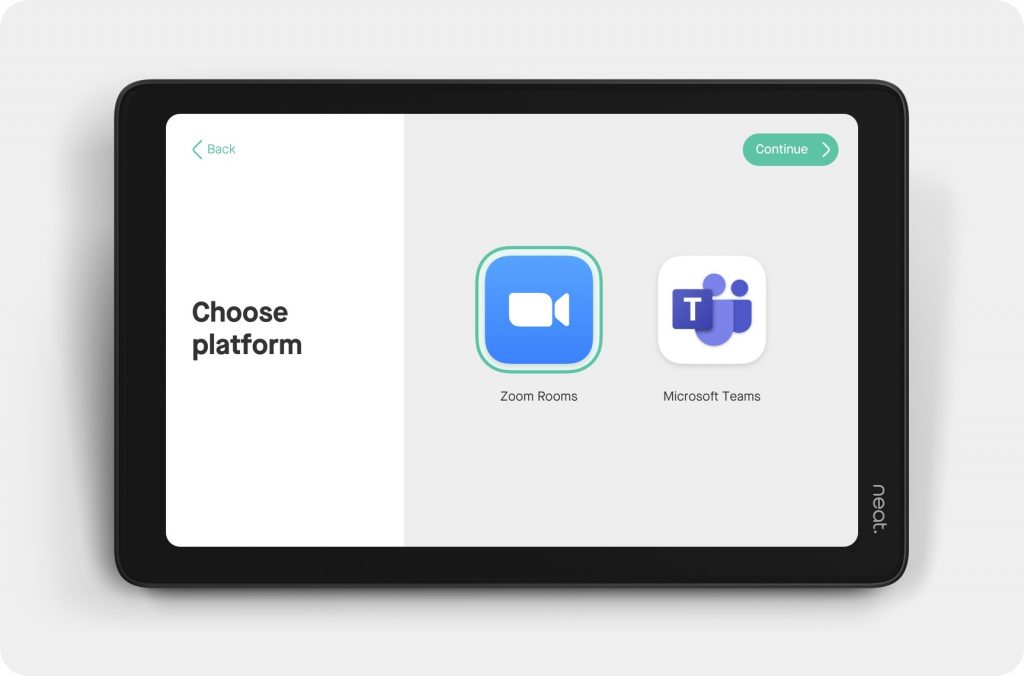
The video conferencing platform will install. Do not unplug your devices whilst it is installing. Once completed, a prompt displays to confirm that your device is now ready to use and You’re all set! Click Launch.
Once you have launched either Zoom Rooms or Microsoft Teams you can sign in to your account:
- Zoom: Activate your Zoom Room either by entering the device activation key here, signing in with your Zoom account directly on the Pad and selecting the correct Zoom Room, or using the Activation Code found in the Zoom Device Manager.
For more information on Zoom level pairing see Understanding Neat and Zoom Pairing on Neat devices - Teams: Activate your Microsoft Teams Room by registering both the Neat Bar and Neat Pad to your account here.
For more information on Microsoft Teams level pairing see Understanding Neat and Microsoft Pairing on Neat devices
That’s it! You are now ready to make calls using your new Neat Bar and Neat Pad!