Neat Pulse Bulk Actions on Spaces
Last updated August 5, 2026
Overview
Neat Pulse supports simultaneous bulk actions across multiple spaces. This is useful when you manage a large deployment and need to update many spaces at the same time – for example, assigning a location to many spaces.
Bulk actions on spaces extends existing device-level bulk actions to the space level, and lets administrators apply space-level settings across multiple spaces at once rather than one at a time.
Contents
- Overview
- Prerequisites
- Available Bulk Actions on Spaces
- How Selection Works
- Selecting Multiple Spaces
- Performing a Bulk Action
Prerequisites
- Neat Pulse Management Account (Pulse Starter or Paid Plans) (Available to all Roles)
- Minimum Neat Pulse version 2.27
Available Bulk Actions on Spaces
When one or more spaces are selected, you can:
- Assign location. Set or change the location for all selected spaces at once.
- Assign profile. Apply or change a settings profile for all devices across the selected spaces.
- Export enrollment codes. Generate new enrollment codes for the selected spaces and download them in a CSV. This works for any selected space, whether or not devices are already enrolled, and the CSV contains one new code per space that you can use to enroll additional devices later.
- Remove. Remove the selected spaces from your organization. This action cannot be undone.
Note: Exporting generates a fresh enrollment code for each selected space, replacing any code previously issued for those spaces.
Important: Removing a space unenrolls every device in that space from your organization. Those devices are no longer managed in Neat Pulse and must be re-enrolled to bring them back. Make sure no devices in the selected spaces are still in use before removing them. This action cannot be undone.
How Selection Works
Spaces and devices are selected separately.
When you select a space, you cannot select devices, and when you select devices, you cannot select a space. This makes sure a bulk action always applies either to a set of spaces or to a set of devices, never to a mix. If you need to act on both, complete one bulk action, click Cancel, then start a new selection.
Note: Previously, clicking the checkmark on a space selected all devices in that space. With bulk actions on spaces, clicking a space now selects the space itself. To select the devices inside a single space, click each device tile individually.
Selecting Multiple Spaces
You can select spaces in two ways: individually, or all at once.
Select Spaces Individually
- Log in to your organization’s Neat Pulse portal at pulse.neat.no
- Go to the Devices page from the left menu.
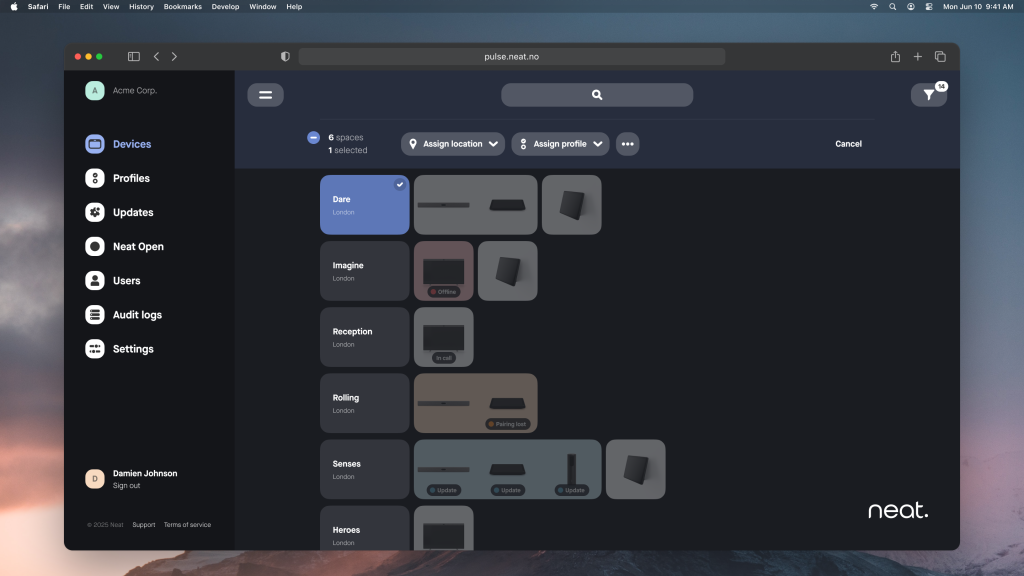
- Click the name box of a space to select it. A checkmark will appear on the space.
- Repeat for each additional space you want to include in the bulk action.
Select All Spaces
- On the Devices page, hover over the spaces count at the top of the list (for example, 6 spaces as in Figure 1).
- A Select all checkbox appears. Click it to select every space in the list.
Note: Select all selects only the spaces currently shown. If you have applied a filter or search, only the matching spaces are selected. To select every space across your whole organization, clear all filters first.
Performing a Bulk Action
Once you have selected the spaces you want to act on:
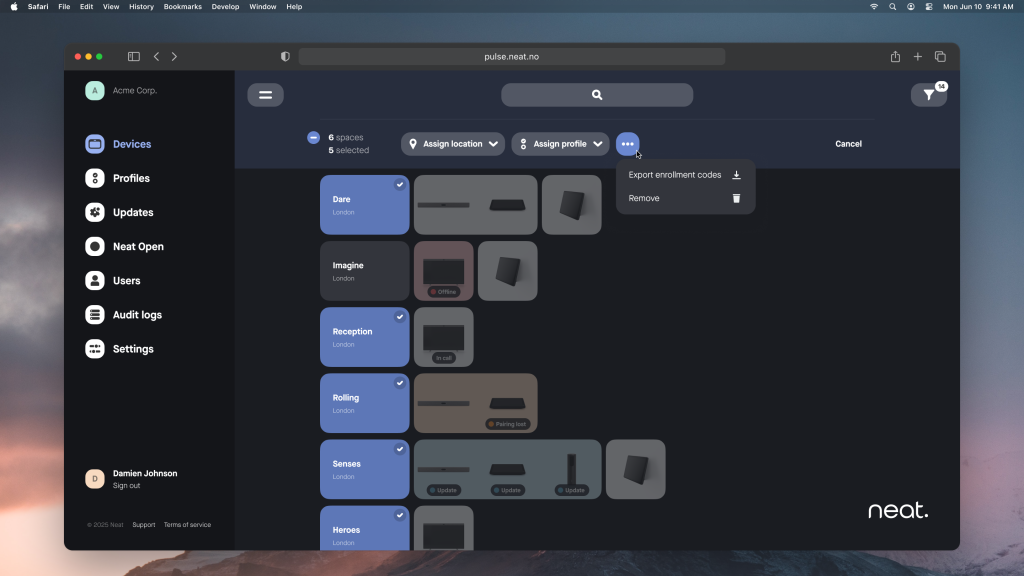
- At the top of the Devices page, you’ll see the count of selected spaces (for example, 6 spaces / 5 selected).
- Use the action buttons or the More actions (•••) menu to choose what to do:
- Click Assign location to set or change the location.
- Click Assign profile to apply or change a settings profile.
- Open the More actions (•••) menu and choose Export enrollment codes to download a CSV.
- Open the More actions (•••) menu and choose Remove to remove the spaces.
- Confirm the action when prompted.
- To exit the bulk-selection view without performing an action, click Cancel.