
Using HDMI Audio Out to Drive External Speakers
Last updated November 2, 2026
Introduction
From Neat OS 26.3.0 onward, supported Neat devices can deliver meeting and content audio to external in-room loudspeakers through the existing HDMI audio output. This enhancement builds on the HDMI audio output capability originally introduced through Assistive Listening Device (ALD) integrations—providing a simple and flexible way to extend audio coverage in larger meeting spaces.
By using a compatible HDMI audio de-embedder, customers can connect Neat devices to existing amplifiers, DSPs, or active speaker systems, allowing audio to be played through in-ceiling, in-wall, or other room-installed speakers. This makes it easier to integrate Neat with professional AV environments while continuing to benefit from the Neat meeting experience.
Contents
- Introduction
- Prerequisites
- 1. System Connectivity Overview
- 2. Step-by-step guide
- Limitations
- Key Considerations
Prerequisites
Before deployment, confirm that your setup meets all the requirements outlined below:
- Supported Neat Devices: HDMI audio output is supported on the following Generation 2 Neat devices:
- Neat Bar Gen 2
- Neat Bar Pro
- Neat Board 50
- Neat Board Pro
- Supported Software Version: The supported Neat device must be running Neat OS 26.3.0 or later.
- HDMI audio de-embedder: A compatible third-party HDMI audio de-embedder is required to extract audio from the HDMI output and route it to an external audio system. Neat does not officially support third-party solutions. Consult your AV integrator or contact Neat’s Solutions Engineering team for recommendations.
- An AV receiver with HDMI audio de-embedding – a suitable alternative for rooms using passive speakers, as it also provides built-in amplification.
- Note: Before deployment, verify with your AV integrator that the selected HDMI audio de-embedder supports proper EDID handling and reliable signal pass-through within your AV environment.
- Audio System Requirements:
- Passive speakers connected to an external amplifier, or
- Active speakers with integrated amplification.
- HDMI Connectivity: An HDMI connection is required between the Neat device and the HDMI audio de-embedder to transport audio to the external speaker system.
1. System Connectivity Overview
1.1 External Speaker Deployment Options
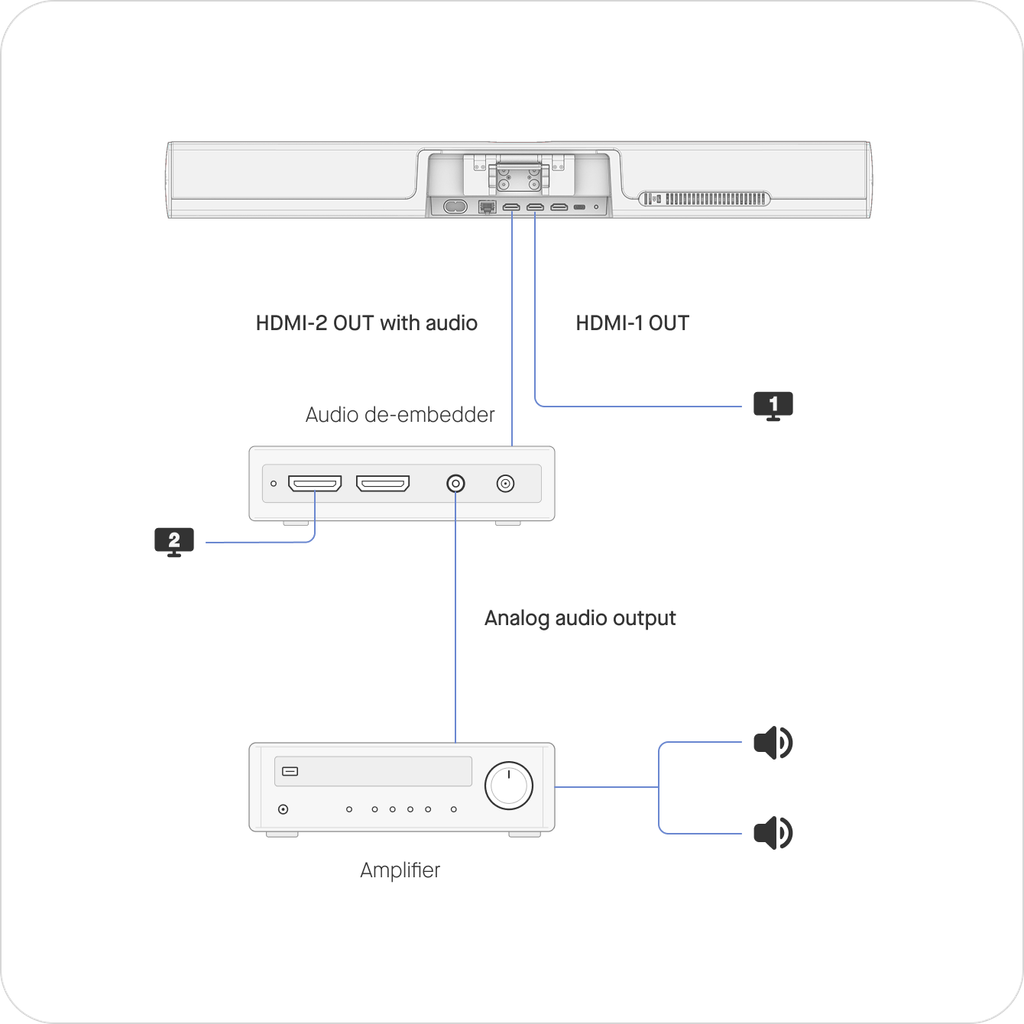
Integrating external speakers with a supported Neat device is straightforward. Audio from the Neat device is sent through an HDMI audio de-embedder, which extracts the audio signal and routes it to your room’s audio system while allowing video to continue to the display.
Passive Speaker Deployment
- Neat Device → HDMI Audio De-Embedder → Amplifier or DSP → Passive Speakers
Active Speaker Deployment
- Neat Device → HDMI Audio De-Embedder → Active Speakers
1.2 Two Audio modes
Select Internal + External or External Only based on the room design and intended audio experience.
Internal + external (default)
Audio plays through both the Neat device’s built-in loudspeaker and the connected external speakers. The built-in speaker keeps far-end voices anchored to the screen, while the external speakers provide additional audio coverage throughout the room. This mode is recommended for supplementary audio coverage or Assistive Listening applications.
External only (available from Neat OS 26.3.0)
The Neat device’s built-in loudspeaker is muted, and audio is output only through HDMI to the external audio system. This mode is recommended for larger or AV-integrated rooms where external speakers serve as the primary audio source.
1.3 HDMI Audio Routing
| Configuration | Supported Devices | Supported Platform* | HDMI 1 | HDMI 2 | HDMI 3** | Screen Mirroring requirement | Notes |
|---|---|---|---|---|---|---|---|
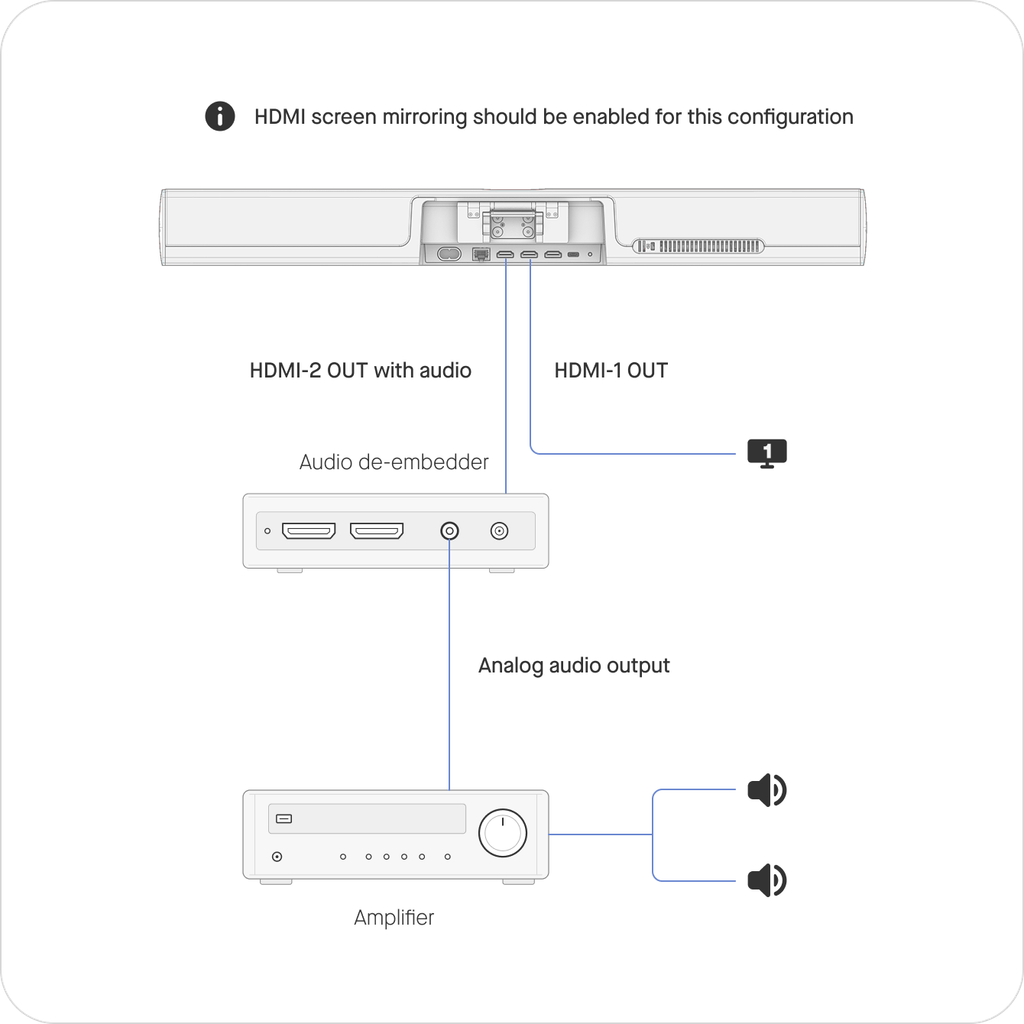
| Single-Display Room | Bar Gen 2 Bar Pro Board 50 Board Pro | Teams Zoom Google Meet | Primary Display | Audio Output | Applicable for Bar Pro – not used | Teams : Yes Google Meet: Yes Zoom: No | Enable Screen Mirroring before connecting the HDMI de-embedder. Reconnect the HDMI cable or restart the device after enabling the setting. |
| Standard Dual-Display Room | Bar Gen 2 Bar Pro | Teams Zoom Google Meet | Primary Display | Secondary Display + Audio Output | Applicable for Bar Pro – not used | Teams : Yes Google Meet: Yes Zoom: No | HDMI 2 carries both the secondary display signal and audio output. Supported across Microsoft Teams, Zoom, and Google Meet. |
| Non- Standard Dual Display HDMI 1 + HDMI 3 Connected (HDMI 2 Unused) | Bar Pro | Teams Zoom Google meet | Primary Display | Not Used | Additional Display + Audio Output | Teams : Yes Google Meet: Yes Zoom: No | HDMI 3 carries both audio and video. For Zoom Rooms, Zoom display settings or Neat Screen Mirroring is required. |
| Triple Display | Bar Pro | Zoom only | Primary Display | Audio Output | Additional Display | Zoom : No | . |
Notes:
* Supported platforms: Connecting an HDMI audio de-embedder does not affect Neat Open BYOD or Automatic/Manual BYOD operation when using native applications such as Zoom, Microsoft Teams, or Google Meet. The Neat device can continue to operate in either its native application mode or BYOD mode while the audio de-embedder is connected and in use.
** HDMI 3: References to HDMI 3 in this table apply specifically to Neat Bar Pro, as it is the only supported device with an HDMI 3 output port.
To enable screen mirroring: On the Neat Pad or Board go to Settings > System Settings > Display > toggle the HDMI Screen mirroring to ON.
2. Step-by-step guide
2.1 Connect the Cables
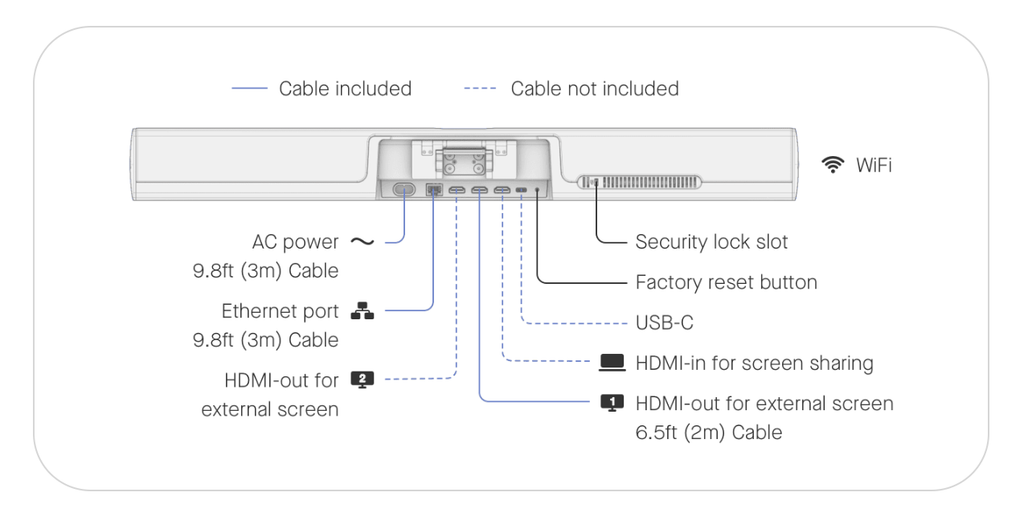
- Connect the primary display to HDMI 1 Out on the Neat device (see Figure 1).
- Connect the HDMI audio de-embedder to HDMI 2 Out.
- For dual-display setups, connect the HDMI audio de-embedder to HDMI 2 Out and then the secondary display (see Figure 2).
- For single-display setups, complete the connection and then enable Screen Mirroring (see Figure 3).
To enable screen mirroring: On the Neat Pad or Board go to Settings > System Settings > Display > toggle the HDMI Screen mirroring to ON
- Connect the audio output from the HDMI audio de-embedder to the external audio system:
- Connect to an amplifier when using passive speakers.
- Connect directly to the speakers when using active speakers.
- Power on all connected equipment and verify that the display is receiving video correctly.
2.2 Configure the Neat Device Settings
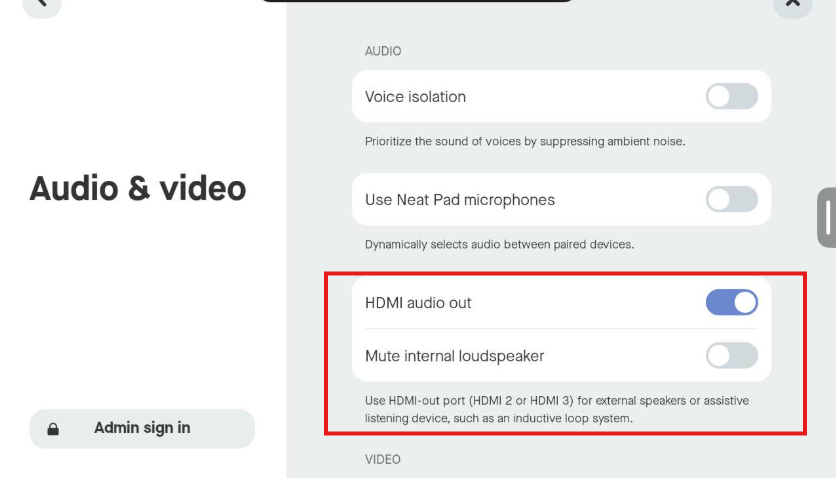
After completing the cable connections, configure the required settings on the Neat Pad paired with Bar or Neat Board.
- Go to Settings → Audio & Video → toggle HDMI audio out to ON (see Figure 1).
Note: this setting can also be applied centrally using Neat Pulse Profiles.
2.3 Verify the Setup
- Place a test call.
- Confirm that far-end audio plays through the connected external speakers.
- Verify that video continues to display correctly.
- If Internal + External audio mode is selected, confirm that audio is heard from both the Neat device and the external speakers.
- If External Only is selected, confirm that audio is heard from the external speakers and that the Neat device’s internal loudspeaker is muted.
2.4 Adjusting the Volume
Control volume from the Neat Board or the paired Neat Pad to the Bar. Volume changes apply to both the built-in speakers and HDMI audio output.
For best results, set your amplifier or active speakers to a fixed level and use the Neat device for day-to-day volume adjustments.
Limitations
- HDMI audio out only carries remote participants and shared content — not people speaking in the room: The HDMI output carries only remote participant audio and shared content. Rooms that require voice lift must use a third-party DSP over USB audio instead of HDMI audio out.
- HDMI audio out and audio over USB can’t be used at the same time: HDMI audio out and Audio over USB cannot be used simultaneously. If Audio over USB is currently enabled, disable it before enabling HDMI audio out. For more information, see Using USB Audio with Neat Bar Pro and Neat Board Pro – Neat Support.
Key Considerations
For the best experience:
- Avoid audio distortion in the external signal path.
Distortion can degrade echo-cancellation performance. For best results, use external speakers with sufficient output capacity, typically larger and more powerful than the built-in speakers on the Neat device. - External audio equipment must be configured to maintain acceptable latency.
Additional delay introduced by amplifiers, DSPs, or other downstream audio equipment can affect the meeting experience. Ensure any external audio processing stays within the latency limits expected by the meeting platform.