
How to Pair a Neat Pad to a Neat Bar Using Manual IP and PIN
Last updated on November 17, 2026
When your network allows automatic device discovery, pairing a Neat Pad to a Neat Bar or Board requires no extra steps—see How to Pair a Neat Pad to a Neat Board. Automatic discovery relies on multicast DNS (mDNS), which some enterprise networks block for security reasons. If mDNS is blocked, pairing can fail even though both devices are reachable on the network.
Starting with Neat OS 26.6.0, you can pair a Neat Pad to a Neat Bar or Neat Board manually by entering the device’s IP address directly, without relying on mDNS. A PIN exchange confirms that you’re pairing with the correct device.
Contents
When to use manual IP pairing
Use manual IP pairing if:
- The Neat Board doesn’t appear automatically on Neat Pad’s pairing screen after a reasonable wait, and
- Your network administrator has confirmed that mDNS (multicast DNS) is blocked or restricted on your network.
If you’re not sure whether mDNS is blocked, try automatic pairing first. Manual IP pairing is always available as a fallback.
Before you begin
- Both the Neat Pad and the Neat Bar/Neat Board must be running NeatOS 26.6.0 or later.
- Both devices must be on the same subnet.
- TCP port 8443 must be open between Neat Pad and Neat Bar/Neat Board. This port is used for the secure pairing exchange. See Network and Firewall Requirements for Neat.
- You’ll need Neat Bar/Neat Board’s IP address, shown on the device’s own pairing screen (see Step 1).
- Manual IP pairing works across Neat’s full device range and platform generations, both during initial out-of-box setup and when pairing or re-pairing afterward.
Step 1. Find Neat Bar/Neat Board’s IP address
For Neat Board:
- Open System Settings → Pairing on the Neat Board, using the admin password configured for your system.
- The device’s IP address is displayed on the pairing screen.
For Neat Bar:
- Neat Bar has no screen of its own and stays in out-of-box setup until it’s paired with a Neat Pad, so you can’t open System Settings on the Bar before pairing.
- Instead, Neat Bar’s IP address is shown automatically on the connected display during out-of-box setup, and again on its pairing screen afterward. No admin password or menu navigation is needed.
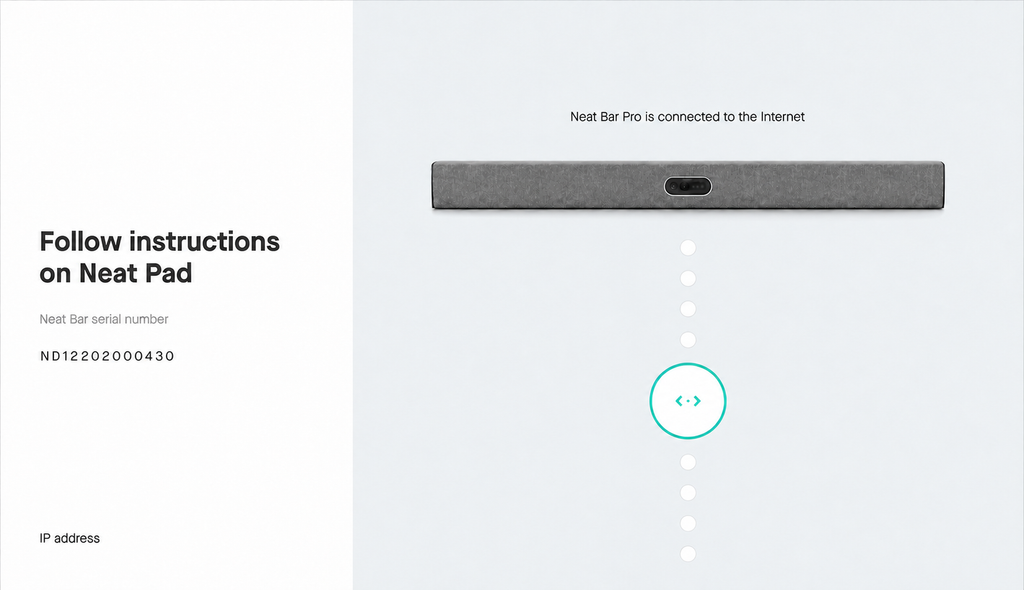
Either way, write down or note the IP address—you’ll enter it on Neat Pad in the next step.
Step 2. Enter the IP address on Neat Pad
1. On Neat Pad, go through the normal pairing flow (during out-of-box setup, or after a factory reset) and reach the Pairing page.
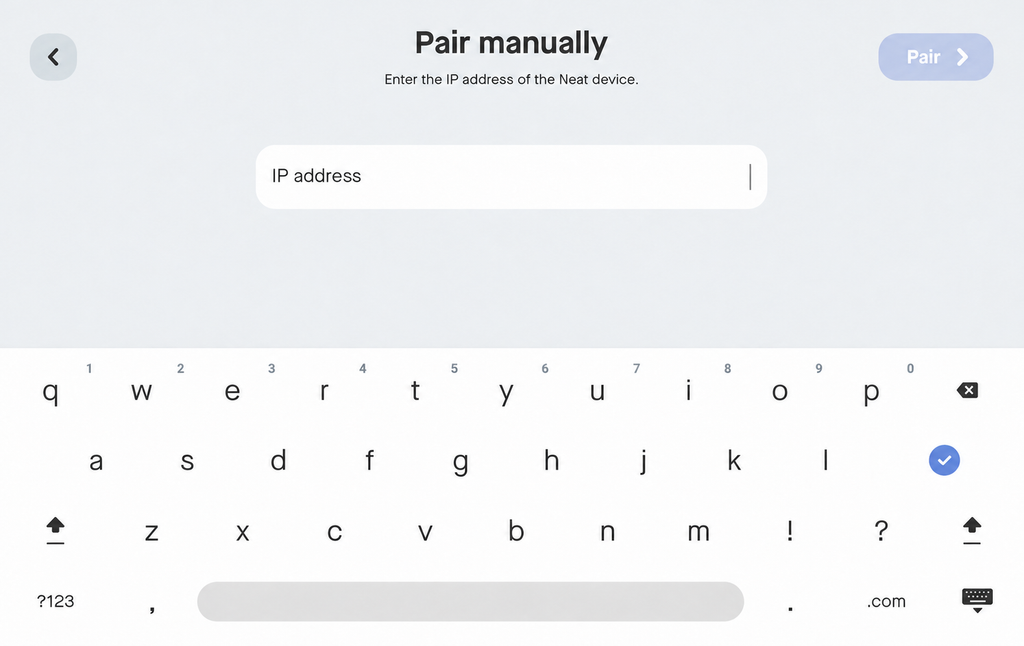
2. Neat Pad will first try to discover Neat Bar/Neat Board automatically. Since mDNS isn’t available, a “Can’t see your device?” button will appear. Select it, then select “Pair manually” to enter the IP address you noted in Step 1.
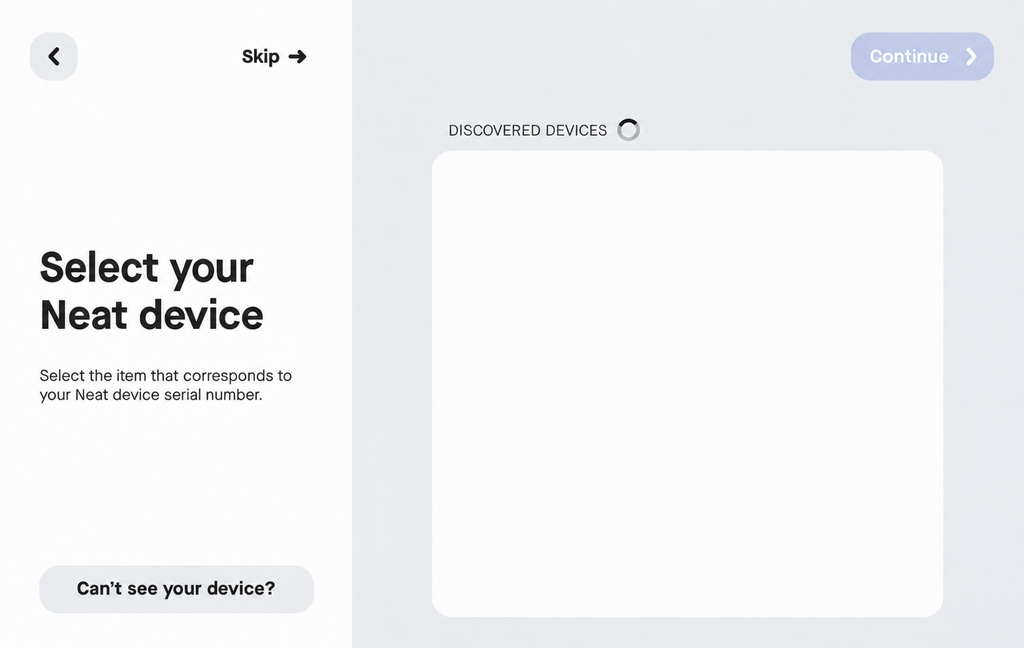
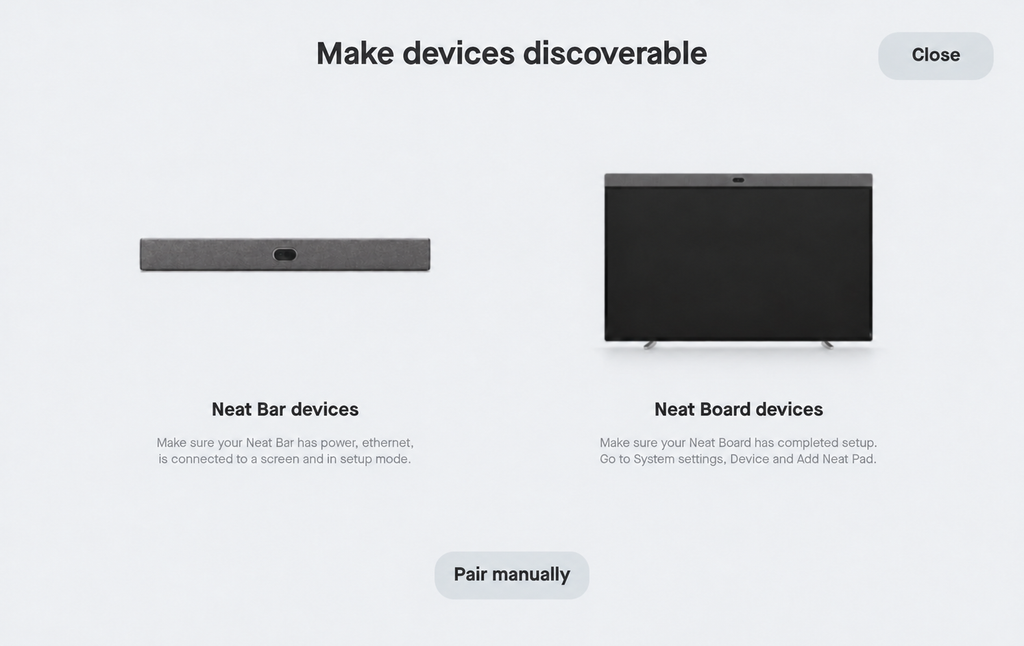
3. Enter the IP address you noted in Step 1, then press Continue.
Step 3. Confirm the PIN
1. After entering the IP address, both Neat Pad and the Neat Bar/Neat Board will display a PIN.
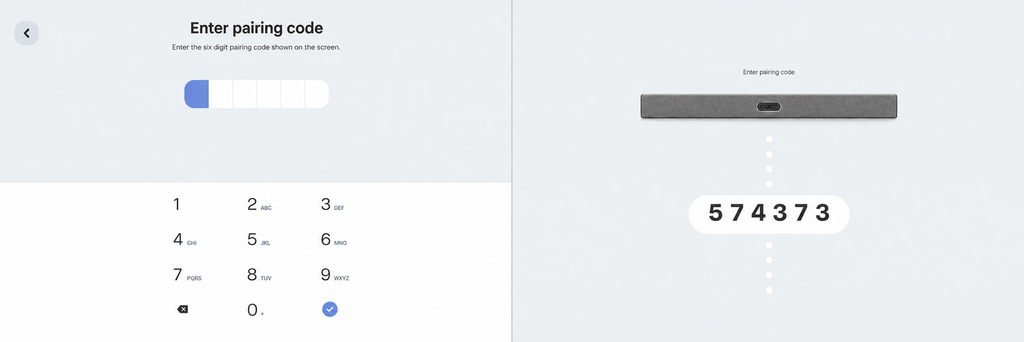
2. Confirm that the PIN shown on both devices matches, then select Confirm (or similar) on the Pad.
3. Pairing completes through the standard secure exchange. The PIN step verifies that you’re pairing with the device you intend to, even without automatic discovery.
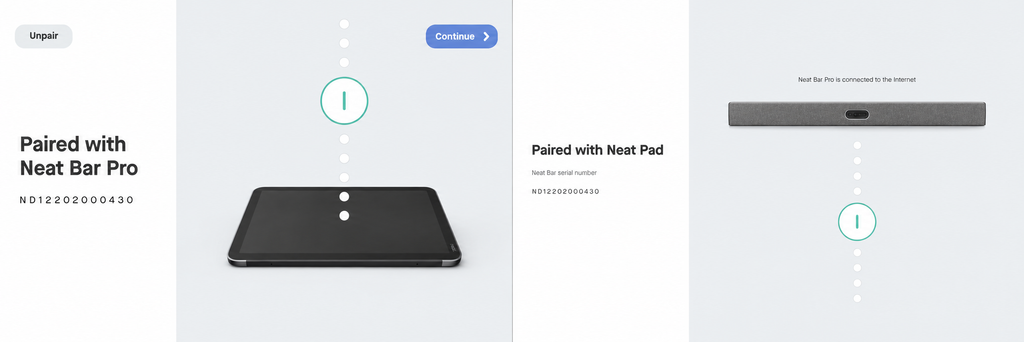
Once paired at the Neat level, continue to app-level pairing for your platform — see Step 3 in How to Pair a Neat Pad to a Neat Board.
Troubleshooting
The PIN shown on the two devices doesn’t match.
- Do not confirm pairing. First, double-check that you entered the correct IP address for the intended Neat Bar/Neat Board—if not, go back to Step 2 and re-enter it.
If the IP address was correct and the PINs still don’t match, the PIN code itself may need to be refreshed: navigate back one page, then forward again to the PIN pairing page. This prompts the Neat Bar/Neat Board to generate a new PIN. Compare the new PIN on both devices before confirming pairing.
Pairing fails or times out after entering the IP address.
- Confirm that TCP port 8443 is open between Neat Pad and Neat Bar/Neat Board on your network, and that both devices are on the same subnet. See Network and Firewall Requirements for Neat.
I entered the wrong IP address.
- Return to Step 2 and re-enter the correct IP address shown on Neat Bar/Neat Board’s pairing screen.
More information
Manual IP pairing uses a cryptographic PIN exchange (PAKE/SRP-6a) over TCP port 8443 to verify both devices before completing pairing—providing the same level of trust as automatic discovery, without depending on mDNS.