
How to Pair a Neat Pad to a Neat Board
Last updated October 20, 2026
While not required, pairing a Neat Pad to a Neat Board allows easy and hassle-free meeting controls to get the most out of the video conferencing experience. Neat-level pairing is available between a Neat Pad and a Neat Board and allows users to control and manage their Neat Board from the Neat Pad in the same way they do, for example, for the Neat Bar and Neat Bar Pro.
Note: This article applies to all Neat Board variants, however, you may see some minor differences in the UI depending upon your device type.
Contents
- Step 1. Setting up Neat Board
- Step 2. Pairing the Pad at the Neat level
- Step 3. Pairing a Neat Pad and Board at the App level
- More information
Step 1. Setting up Neat Board
- To pair a Neat Pad with a Neat Board, the Neat Board must already be running a videoconferencing platform. For more information, see How to Set up a Neat device to select the article for your specific device.
- Once you have gone through the OOB (out-of-box) process and chosen your platform or service you will need to access Neat System Settings -> Pairing.
Note: In order to access this you will require a password configured by your admin. For Microsoft Teams the default password is the last 6 digits of the serial number. - As soon as you enter the Pairing page the Neat Board will broadcast and become discoverable over TCP ports 46000 and 46001.
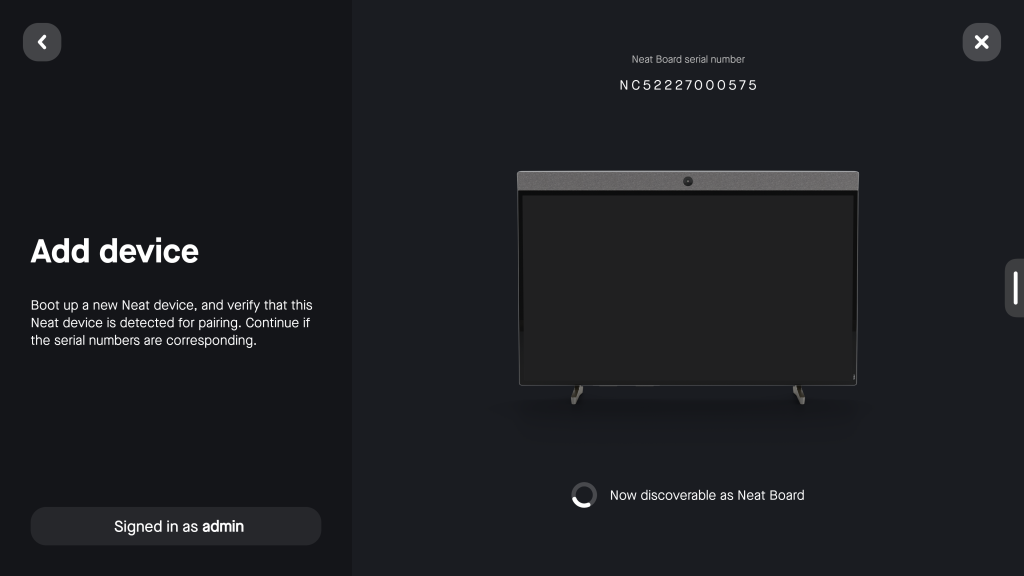
Step 2. Pairing the Pad at the Neat level
You will now need to pair the Pad to the Board during the out-of-box process or after a Factory reset.
Note: You can only pair one Neat Pad per Board at the Neat level.
- Connect the Pad to power (either using Power over Ethernet [PoE] on your wired network or using a PoE adapter if using wifi). Refer to the diagram printed on the Neat Pad packaging.
- Once Neat Pad starts up, select the preferred language and press Continue.
- Choose the option to Add a controller and press Continue.
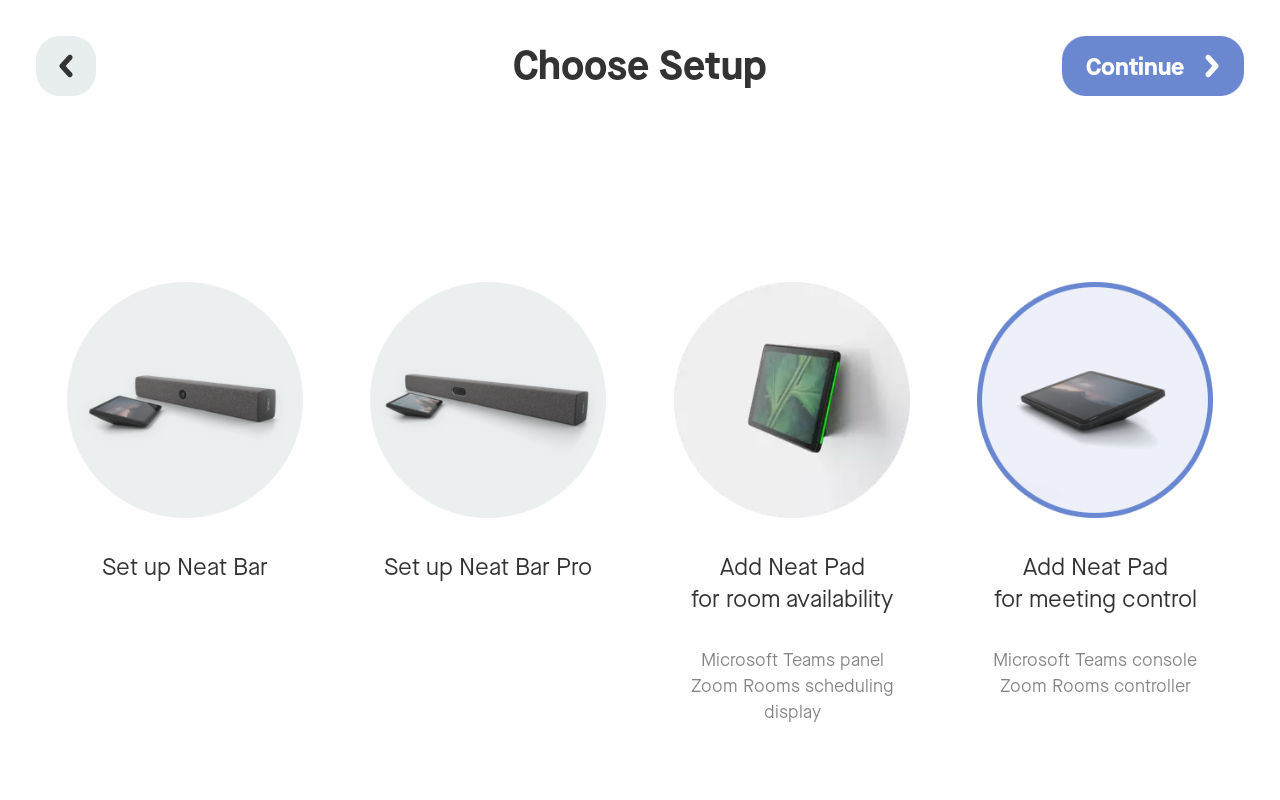
- Change network details if needed and press Continue. Confirm that Neat Pad is on the same subnet as the Board and that the Network and Firewall requirements are met.
- At the Pairing page, you will see the Neat Board’s serial number show up. Select the Board and press Continue.
- Change the time format and time zone if needed and press Continue.
- If you would like to enrol the pad to Neat Pulse, please enter the enrollment code, alternatively please press ‘Skip’.
- Select the analytics and improvement preferences and press Continue.
- Select your chosen platform to install it.
Step 3. Pairing a Neat Pad and Board at the App level
Based on the platform chosen when setting up your Board, the app-level pairing process will be slightly different.
- Zoom: If you would like to pair a Pad to the Neat Board please see our Zoom-level pairing articles: Understanding Neat and Zoom Pairing on Neat devices and How to setup Neat Pad as a Controller for Neat Board and other Zoom Rooms.
- Microsoft Teams: If you would like to pair a Pad to the Neat Board please see our Teams-level pairing articles: Understanding Neat and Microsoft Pairing on Neat devices and How to Sign in and Pair on Microsoft Teams.
- Google Meet: You are now ready to pair and sign in on Google Meet. For more information, see How to Pair and Sign in on Google Meet.
Note: Neat Board (Gen 1) does not support Google Meet.
More information
- Pad and Board can discover each other (and maintain pairing) using the multicast DNS, mDNS, protocol. These multicast packets need to travel between the two devices at all times. You will need to make sure the Pad and Board are on the same subnet and mDNS is enabled on your network. For more information, visit our Network and Firewall Requirements for Neat Devices article.
- During initial discovery/setup, the Pad and Board will also communicate over IP address on TCP ports 46000 and 46001. Once setup is complete, the Neat firmware will send encrypted communication over TCP port 8443.