
How to Set Up Webhooks for Google Chat
Overview
You can use Google Chat webhooks to automatically post Neat Pulse notifications and alerts to a Google Chat space. This is a simple way to monitor device health, sign-in status, and other key events without leaving Google Chat.
Neat Pulse supports the Google Chat Cards v2 format to ensure that messages to Google Chat spaces are properly formatted.
This guide walks you through:
- Creating an incoming webhook in Google Chat
- Adding a webhook trigger for incoming Pulse events
To learn how to set up a webhook for Microsoft Teams, see this article: How to Set Up Webhooks for Microsoft Teams.
To learn how to set up a webhook for Slack, see this article: How to Set Up Webhooks for Slack.
Before you start
To complete this setup, you’ll need:
- A Google Chat space where you have permission to manage apps & integrations
- A Google Chat space to post messages into
- A Neat Pulse account with Owner access
Set up Google Chat
- Ensure that you have a space that you want your webhook messages to be posted to. If not, start by creating a new space
- In Google Chat, open the space, click the space name at the top, and select Apps & integrations
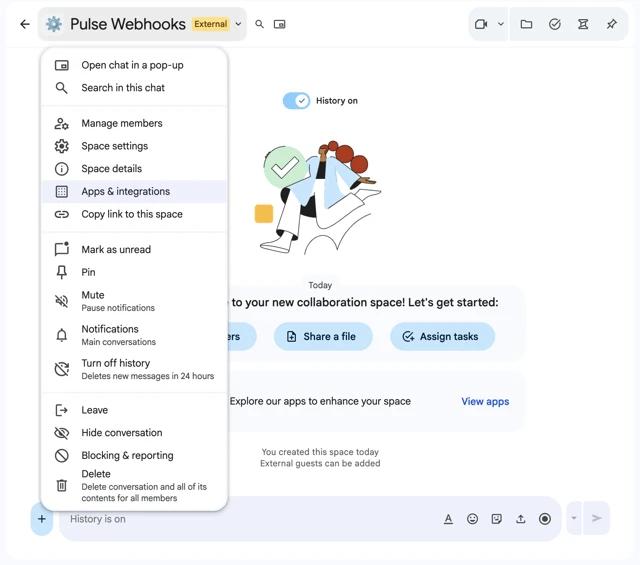
3. Click Manage webhooks.
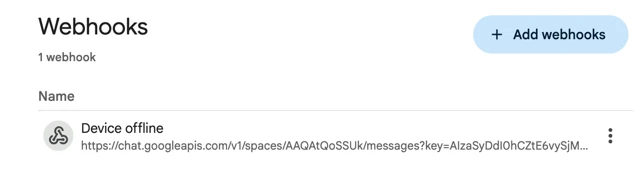
4. Click Add webhook, give it a name, then click Save
5. Copy the webhook URL – you’ll need it in Neat Pulse
Set up Neat Pulse
- In Neat Pulse, got to Settings → Alerts and Events
- Click Create rule
- Name the rule and select what events you want to subscribe to. See a description of each event here. Click next
- Paste the webhook URL you copied from Google Chat
- Choose Google Chat (Cards v2) as Format
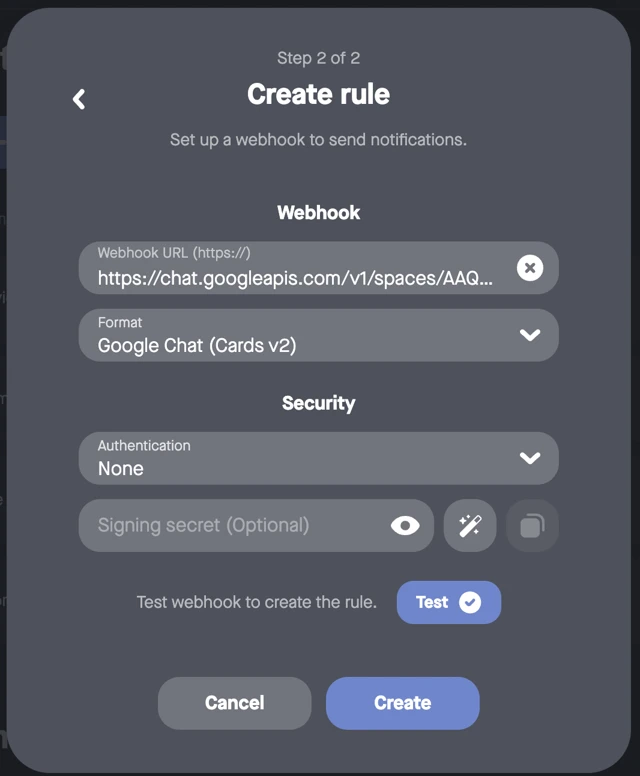
6.Click Test. If the test succeeded, open your Google Chat space to see the test message
7. Go back to Pulse and click Create
Your webhook is now configured both in Google Chat and in Neat Pulse.
Note that Pulse webhooks are deactivated by default when created. When you want it to start sending messages, click the toggle to activate.